
Maintaining Your Setup in Websol Bawarchi POS
In the Websol Bawarchi POS, you have a feature to set up and maintain your Software. This Feature includes day & end activities, reports, and maintenance including (Fiscal year, printers, locations, terminals, and contact type).
Setting Up Software
To set up your application here are the steps to follow:
Step 1. Log in to the system and access the Main Back Office user interface.
Step 2. Find the User Profile Button on the left-middle grey strip, click on the user profile button.
Step 3. User profile windows appear on the screen, click on the "Essentials Setup" button.
Step 4. On the appearing "Essentials Setup" window, the "Day-End Transactions" section is shown on your screen.
Step 5. On the tab bar, click on "Setup And Maintenance".
Step 6. At the left of the appeared window, click on "Manage Fiscal Year"
Step 7. On the Manage Fiscal Year window, give the following information
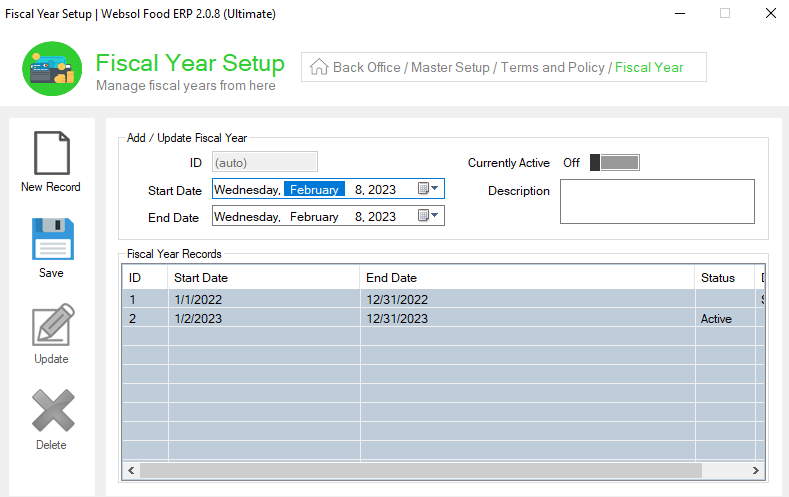
Manage Fiscal Year
In the Manage Fiscal Year, you define the yearly time period of the software
- Give the Start Date.
- Give the End Date.
- Enable/Disable the "Currently Active" label.
- Give the Description.
Step 8. On the left, click on the Save button (message box appears "Record has been Updated successfully").
Step 9. Close the window.
Step 10. Look at the Setup and maintenance window, and click on "Manage Printers".
Step 11. On the Manage Printers window, give the following information.
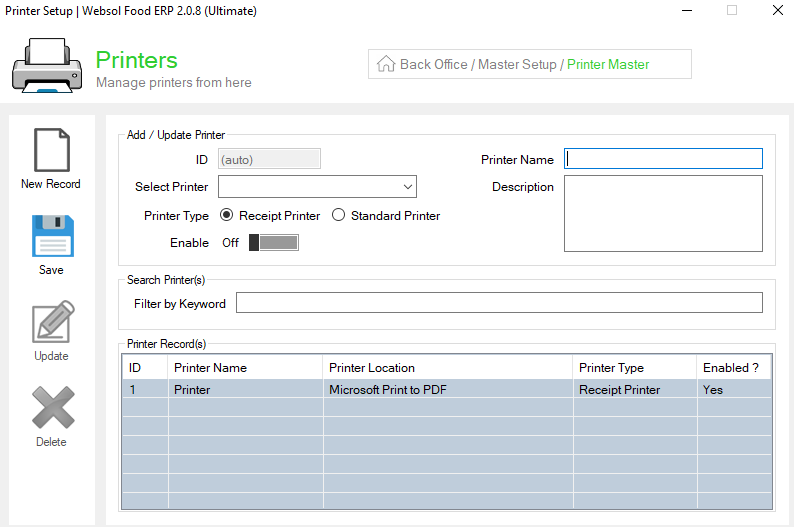
Manage Printers
In Manage Printers you manage your printers in the software
- Select Printer from the dropdown.
- Select the Printer Type.
- Enable/Disable the "Enable" label.
- Enter the Printer Name.
Step 12. On the left, click on the Save button (message box appears "Record has been Updated successfully").
Step 13. Close the window
Step 14. On the Setup and Maintenance window, click on "Manage Locations"
Step 15. On the Manage Locations window, Give the following information
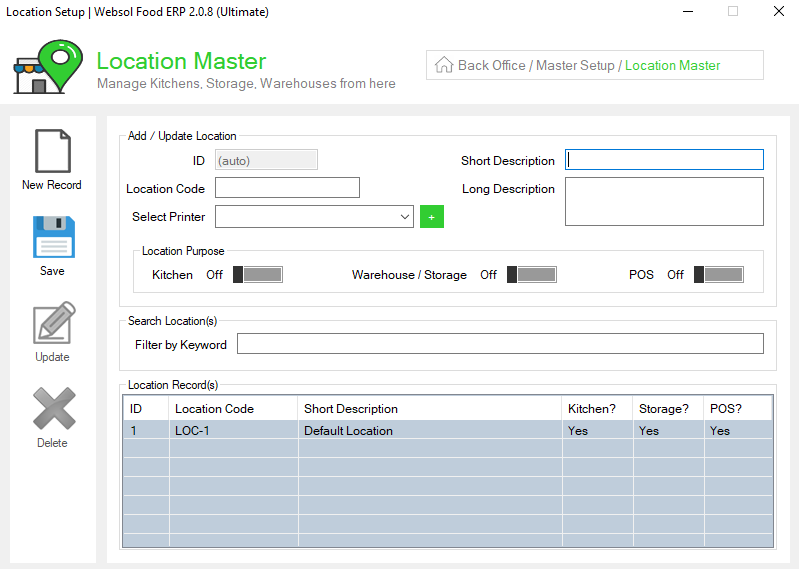
Manage Locations
You can Manage your locations in Manage Locations in the software
- Enter the Location Code.
- Select Printer.
- Give a Short Description.
- In the "Location Purpose" Enable/Disable one of them(Kitchen, Warehouse/Storage, POS)
Step 16. On the left, click on the Save button (message box appears "Record has been Updated successfully").
Step 17. Close the window
Step 18. On the Setup and Maintenance window, click on "Manage Terminals"
Step 19. On the Manage Terminals window, Give the following information
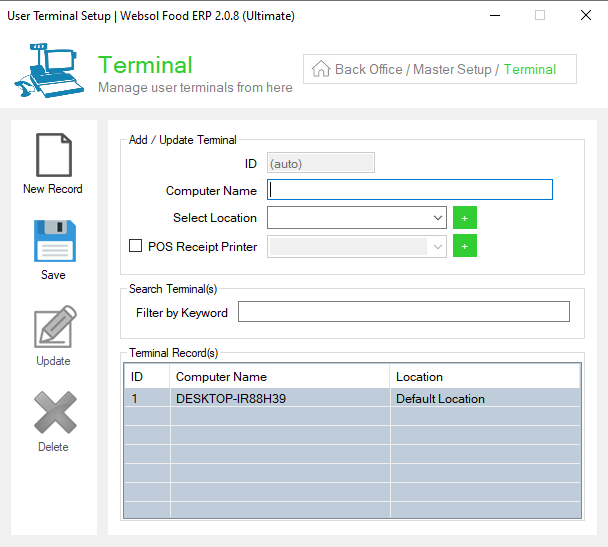
Manage Terminal
- Enter the Computer Name.
- Select location
- Enable/Disable the "POS Receipt Printer" label.
- Select POS Receipt printer
Step 20. On the left, click on the Save button (message box appears "Record has been Updated successfully").
Step 21. Close the window
Step 22. On the Setup and Maintenance window, click on "Manage Contact Types"
Step 23. On the Manage Contact Types window, enter the type of contact in Short Description
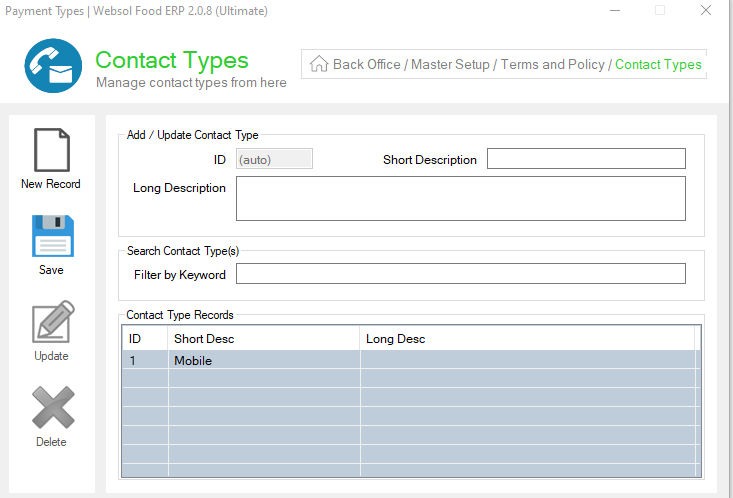
Step 24. On the left, click on the Save button (message box appears "Record has been Updated successfully").
Step 25. Close the window
Step 26. On the tab bar, click on "Reports".
Step 27. On the Reports window, click on "User Activity Reports".
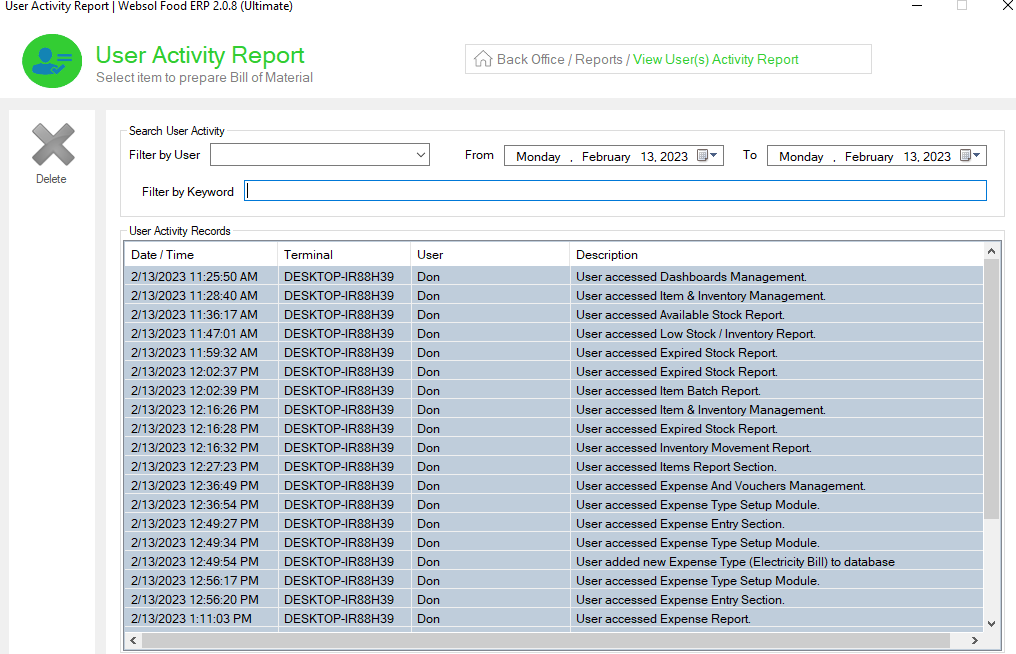
"User Activity Reports" shows all the user's activity like which user accessed in what sections.
Step 28. Close the window
Step 29. On the tab bar, click on "Day-End Transactions".
Step 30. The "Day-End Transactions" window appeared, click on "Backup and Restore".
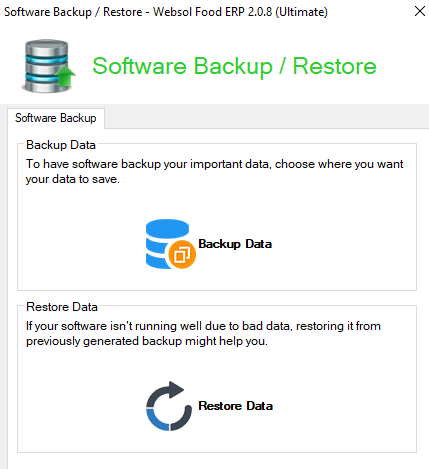
Step 31. On the "Backup and Restore" window, click on the "Backup Data"(If you want backup)
Step 32. Save your backup data in your system.
Step 33. On the "Backup and Restore" window, click on "Restore Data"(If you want to restore your backup)
Step 34. Import the backup file from the system.
Step 35. Close the window
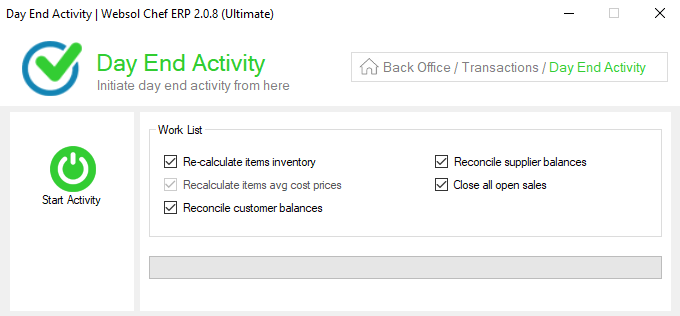
Step 36. On the "Day-End Transactions" window, click on "Day-End Activity"
Step 37. At the left of the window, click on "Start Activity".
Step 38. Close the window.
