
How to Perform a Sale in Websol Muhasib ERP
Websol Muhasib ERP allows you to perform a sale against customers. Muhasib POS offers you an advanced Sale screen with many features that make the sale so easy and have many advanced options. This feature helps business owners to maintain their sales and also helps to sell quickly by using this software.
Performing sale
To perform a sale in Muhasib ERP you have to follow the steps given below
Step 1. Log in to the system and access the Main Back Office user interface.
Step 2. On the appeared window, click "Sales and Customers".
step 3. On the appearing "Sales Management" window, the "Transactions" section is shown on your screen.
Step 4. On the "Transaction" section, click on "New POS Sale"
Step 5. The "New POS Sale" window appears on the screen.
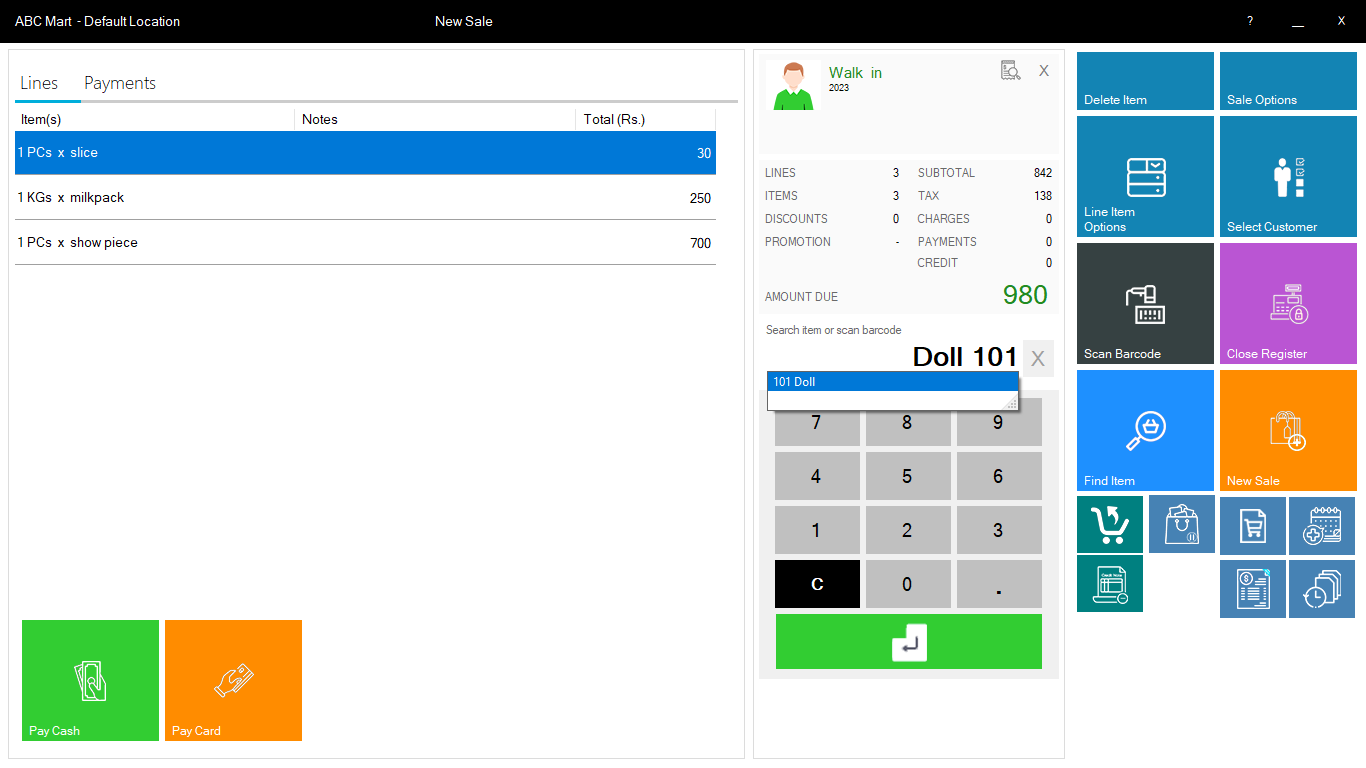
Step 6. In the "New Sale" screen, Do follow the further steps mentioned below.
Step 7. Look at the Top "Select Customer" label, click it, and select the customer.
Step 8. Select the item from the "Search Item or Scan barcode" search box.
Step 9. And if you didn't remember the item name or barcode then click on "Find Item" and select the item you want to sell.
Step 10. On the left "Line" plane screen, your added items are shown.
step 11. Click on the line item, The "Modify Line Item" screen is shown on your screen.
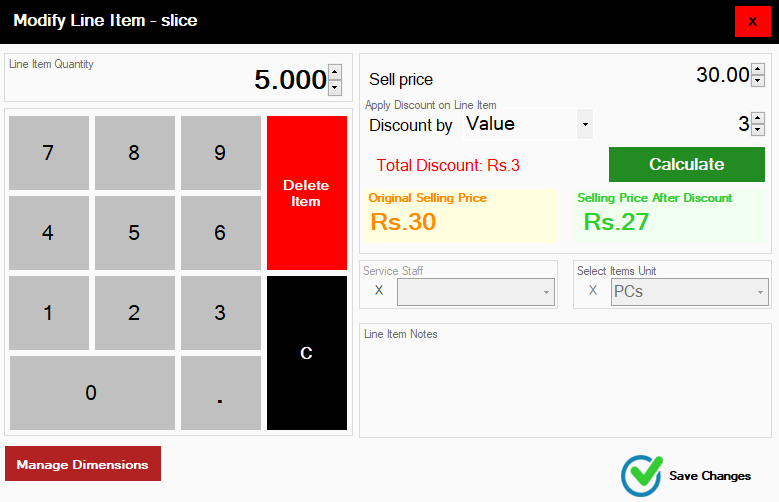
Step 12. You can set the Quantity, change the selling price, and also give the discount on the selected individual item in the "Modify Line Item" screen.
Step 13. To Set the quantity, selling price, and give discounts follow the steps given below.
- In the "Line Item Quantity" field, enter the quantity of the item.
- In the "Sell Price" label, change the selling price.
- In the "Apply Discount in Line Item", select the discounted by from the "Discount by" dropdown, and enter the discount value.
Step 14. After modifying an item, click on the "Save Changes"
Step 15. In the section below "Select Customer" you will see the amount details.
Step 16. If you want to apply more sale options to the total bill then look at the top-right corner and click on the "Sale Option" button.
Step 17. The "Sale Option" screen is shown in the window.
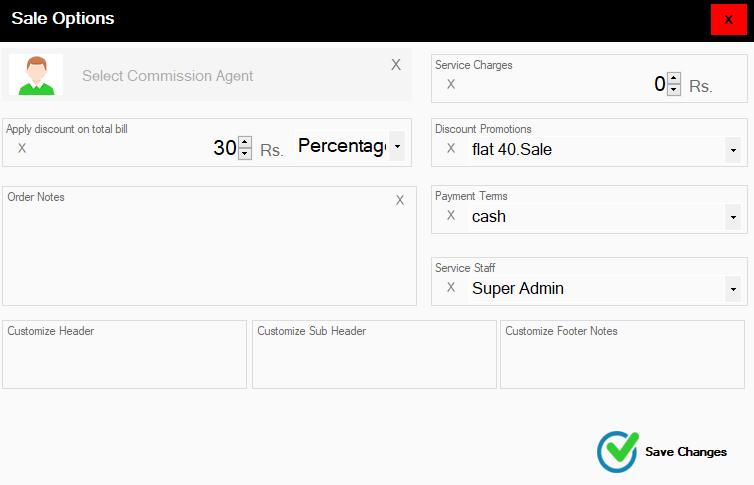
Step 18. If you want to apply the sale options setting on the total bill then you have to follow the steps given below
- In the "Select Commission agent" button, click and select the commission agent if you want.
- If this sale includes any service charges then in the "Service Charges" field, enter the service charges.
- If you want to apply the discount to the total bill then in the "Apply discount on the total bill", select the discounted by and enter the discount number.
- If your company has any discount promotion and you want to implement this in your sale then in the "Discount Promotions", select the discount promotion.
- In the "Payment Terms" dropdown, select the payment term.
- In the "Service Staff" dropdown, select the staff.
- Other options are optional.
- Click on the "Save Changes" button.
Step 19. On the "New Sale" screen, Look at the top left, and click on the "Payments" section.
Step 20. On the "Payment" section, look at the "Enter Payment" field, and enter the payment.
Step 21. After entering the payment in the "Enter Payment" field, press Enter key on your keyboard.
Step 22. The Pop-up appears, Select the payment type and payment account from the dropdown, and click on "Enter Payment".
Step 23. If you want to save the sale, click on the "Save" button or press "Ctrl+s".
Step 24. If you want to save and print the sale, click on the "Print and Save" button.
Step 25. If you want to hold the sale, click on the "Hold" button or press "Ctrl+h".
Step 26. The sale was performed successfully.
CALL US NOW!
+92 311 052 0111 | +92 21 3722 1800
PRODUCT DETAILS
https://www.pointofsale.pk/products/muhasib/
Popular Searches for Performing a Sale in Websol Muhasib ERP
- Muhasib ERP with Sales and customers in Pakistan.
- Muhasib ERP with sales reports
- Muhasib ERP with Apply discounts on sale
- ERP software commission agent
- ERP software customers and sales
- How to assign commission agents on sale in Muhasib ERP
- How to make discounts on items in Muhasib ERP?
- How to perform sales against customers in Muhasib ERP?
- Business in Muhasib ERP.
- Sales in business Muhasib ERP.
- performing sales in business Muhasib ERP.
- How to perform sales in software.
- ERP Software in Lahore, Karachi, Islamabad, Peshawar, Quetta, and all over Pakistan with Interactive Sale screens and customers.
- Websol Muhasib ERP is an All-in-One, One-window business management software solution in Karachi, Lahore, Islamabad, and all over Pakistan.
- Which is the best All-in-One, One-window business management software solution in Pakistan? Websol Muhasib ERP
- Muhasib ERP: Best all-in-one business software solution System.
- Muhasib ERP vs Business management solutions.
- Business ERP Karachi: Muhasib ERP.
- Business ERP Lahore: Muhasib ERP.
- Business ERP Islamabad: Muhasib ERP.
- Muhasib ERP with sales management systems.
- Muhasib ERP with integrated inventory management System.
- Muhasib ERP business running Software System.
- Muhasib ERP POS with purchase Management in business.
- Sales order ticket in Muhasib ERP.
- Business Management Software Pakistan
#websol #websoltechnologies #websolerp #muhasiberp #businesserp #businesssoftware #possoftware #cashregister #businessmanagement #erppos #crmsystem #possystem #billingapp #billingsoftware #fbrpos #srbpos #erpsolutions #accountingsoftware #accountingsolutions #erpsolutions #erpaccounting
