
Websol Bawarchi POS allows to modify dine-in orders, allowing customers to enjoy their meals while the bill remains open until checkout. This feature is ideal for busy dining environments, multi-course meals, and table service operations.
In this guide, you’ll learn how to modify a dine-in sale and how to complete the payment afterward.
Steps to modify a Dine-In Sale
Websol Bawarchi POS manages dine-in sales through three major stages:
-
Perform a Dine-In Sale
-
Modify the Sale
-
Complete the Payment
1. Perform a Dine-In Sale
Step 1. Log in to the system and open the Main Back Office Dashboard.
Step 2. Click on Sales and Customers.
step 3. Click New POS Sale.
Step 4. Create a Dine-In Order.
- Select Sale Type as Dine-In.
- Select Dine-In Customer.
- Select Dine-In Table.
- Select Staff/Waiter (Optional).
- Select Ordered Items.
- Write Order Notes (Optional).
- Click Proceed to Checkout.
- Select Pay-Later Option.
- Click "Save + KOT Only".
The dine-in order is now active, and the customer will pay later.
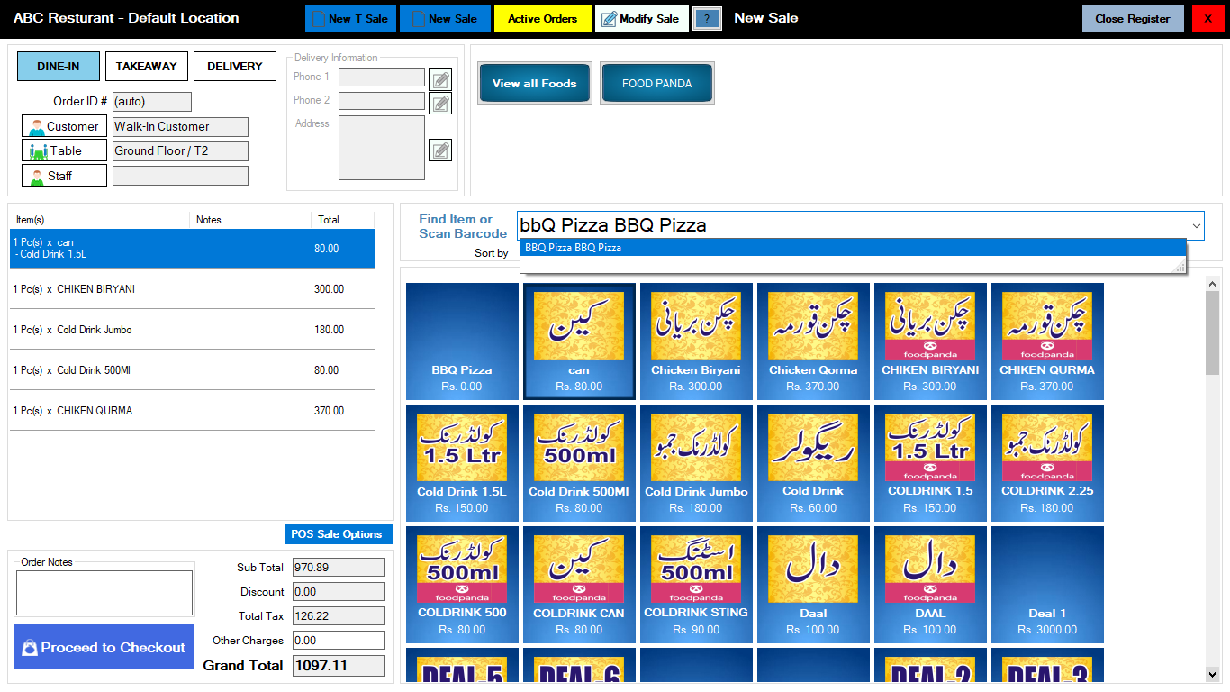
Step 6. First, select the "Dine-in" button on the top-right of the screen.
Step 7. On the top-right, select the customer from the "Customer" button.
Step 8. On the top-right, assign the table by clicking on the "Table" button.
Step 9. On the top-right, select the staff from the "Staff" button.
Step 10. From the "Find Item or Scan Barcode" field, search your items and then select the ordered items
Step 11. The ordered items are shown on the left table.
Step 12. Look on the below-left, and click on "proceed to checkout".
Step 13. The Pop-up appears on the screen.
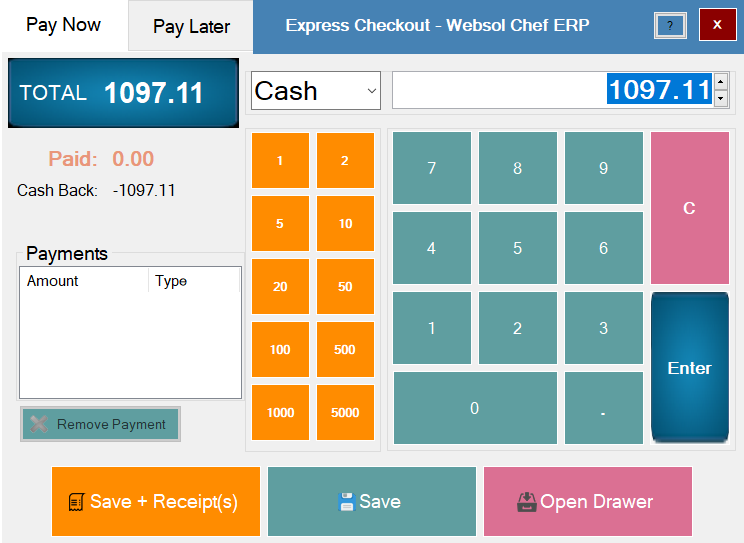
Step 14. On the top of the Pop-up, click on Pay later.
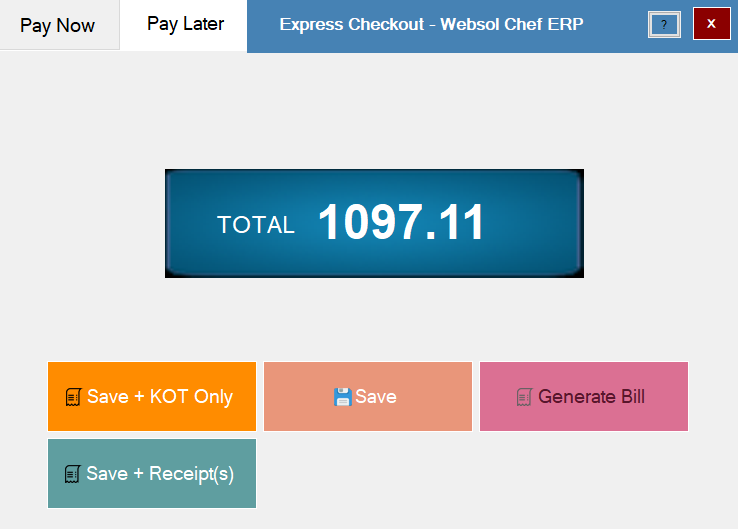
Step 15. On the "Pay Later" section, click on "Save + KOT Only".
Step 16. The message box appears "Record has Been Started Successfully", click on yes.
(The order is on serving,
If the customer wants to add more items then we have to add these items to the existing order of the customer)
Step 17. on the top of the "POS sale" screen, click on "Modify sale".
Step 18. The "Select Previous Sale" screen appears, here you can see your all active orders.
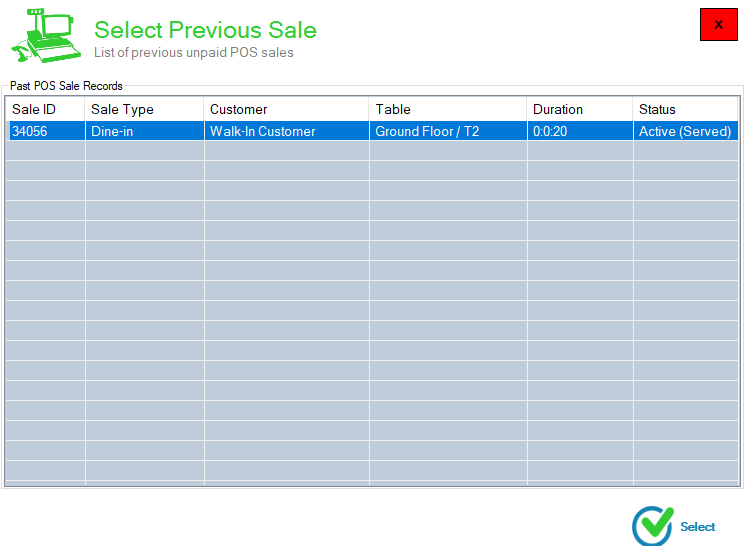
Step 19. Select the order from the table.
Step 20. on the bottom-right, click on the "Select" button.
Step 21. "The ordered items are shown on the left table of the "POS Sale" screen.
Step 22. Select the additional item to add to the customer's order.
Step 23. Again on the below-left, click on "proceed to checkout", and click on "Save + KOT Only" in the "pay-later" Pop-up.
(The sale is modified successfully,
In the end, the customer has to pay )
Step 24. On the top of the "POS sale" screen, click on "Active Orders".
Step 25. The "Active Sales" screen appears, select the order from the table, and on the bottom-right, click on the "Select" button.
Step 26. Look on the below-left of the "POS Sale" screen, and click on "proceed to checkout".
Step 27. The "Pay Now" Pop-up appears on the screen.
Step 28. Enter the payment and select the payment type like (Cash), click on enter button.
Step 29. look at the below, and click on the Save button (message box appears "Record has been Updated successfully").
