
Overview of The Reports of Sales Management In Websol Bawarchi POS
In Bawarchi POS software you have a feature to review your reports related to sales management. This feature includes reports about sales inquiry reports, sales summary reports, sales return reports, working period summary reports, etc.
Overview of the Reports of Sales Management
Follow the Steps to review your reports in a software
Step 1. Log in to the system and access the Main Back Office user interface.
Step 2. On the appeared window, click "Sales and Customers".
step 3. On the appearing "Sales Management" window, the "Transactions" section is shown on your screen.
Step 4. On the tab bar, click on the "Reports" section.
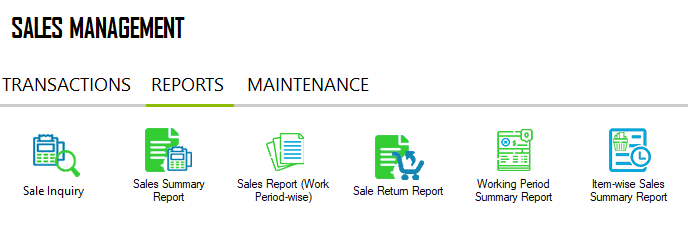
Step 5. The "Reports" section appears on the screen.
Sale Inquiry Report
- On the Left of the Reports Section, click on the "Sale Inquiry" button.
- The "Sale Inquiry" report appears on the screen.
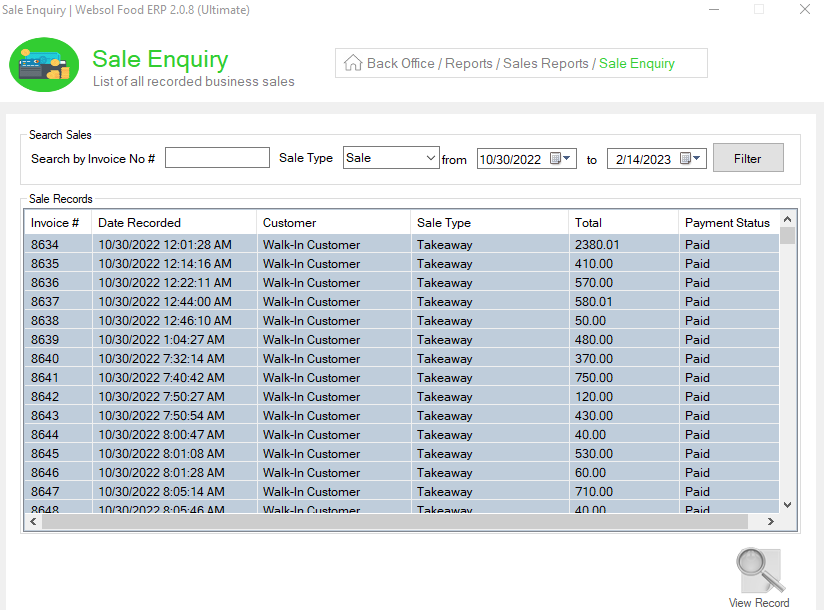
- In the "Search Sales" panel, select the "Sale Type" from the dropdown and date from "From" & "To", and click on the "Filter" button.
- The "Sale Inquiry" reports show all the details about performed sale which include (date, customer name, sale type, total amount, and payment status)
- If you want to know more about any sale then click the sale, after selecting the sale look at the bottom and click on the "View Record" button.
- The selected "Sale Enquiry" window appears, review sales in detail.
- If you want to print the sale then on the right, click on the "Print Receipt" button.
- Close the window.
Sales Summary Reports
- On the Reports Section, click on the "Sale Summary Report" button.
- The "Sale Summary Report" appears on the screen.
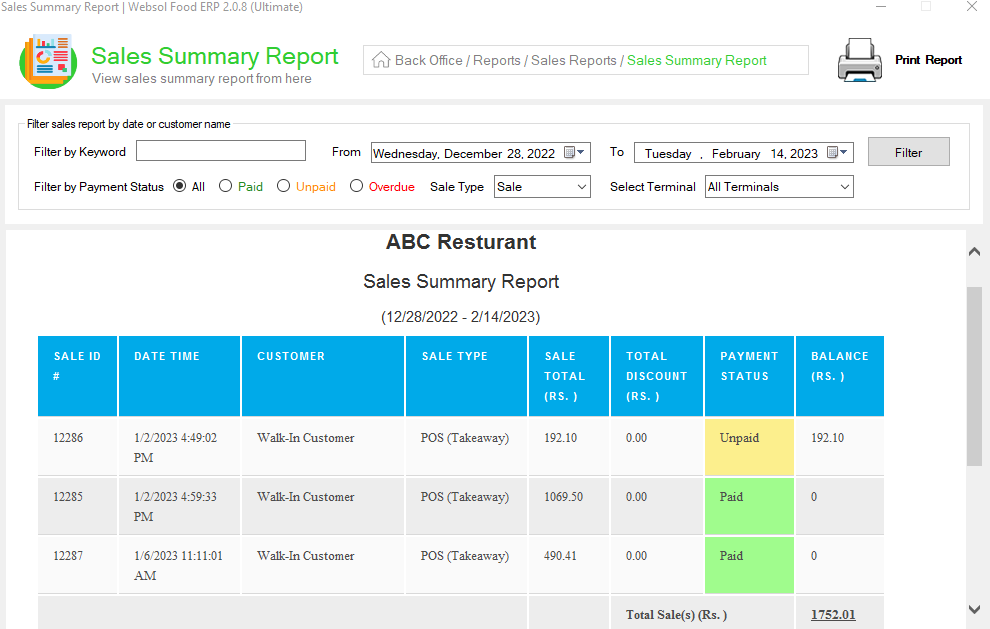
- In the "Filter sales report by date or customer name " panel, select the date from "From" & "To".
- From the Choice "Filter by Payment Status" label, chose the report status.
- From the "Sale Type" dropdown, select the sale type.
- From the "Select Terminals" dropdown, select the terminals.
- Click on the "Filter" button.
- The Sales summary report shows the details about all performed sales and paid sales, unpaid sales, and overdue sales including (Date and time of the sales, Payment status, and customer name).
- Close the Window
Sales Reports(work-period wise)
- On the Reports Section, click on the "Sale Report(work-period wise)" button.
- The "Sale Report(work-period wise)" appears on the screen.
- In the "Filter working period-wise sales report by date or customer name " panel, select the date from "From" & "To".
- From the Choice "Filter by Payment Status" label, chose the report status.
- From the "Sale Type" dropdown, select the sale type.
- From the "Select Terminals" dropdown, select the terminals.
- Click on the "Filter" button.
- The Sales summary report shows the details about performed all day-wise sales including (Date and time of the sales, Payment status, and customer name).
- Close the Window
Sales Reports(work-period wise)
- On the Reports Section, click on the "Sale Return Report" button.
- The "Sale Return Report" appears on the screen.
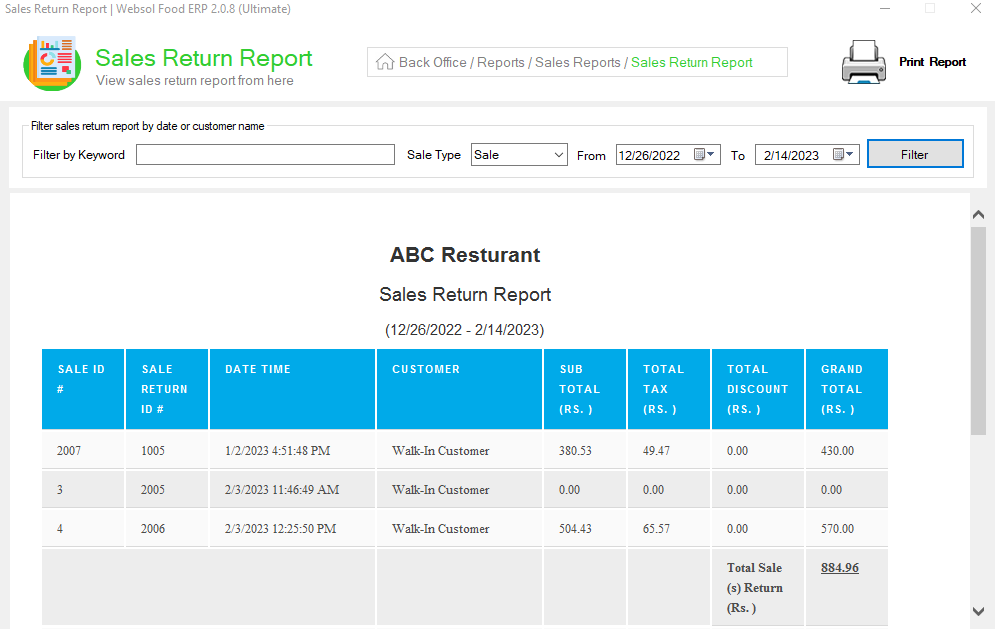
- In the "Filter sales return report by date or customer name " panel, select the "Sale Type" from the dropdown and select the date from "From" & "To", and click on the "Filter" button.
- The Sales return report shows all the details about the return performed sales
- Close the Window.
Working Period Summary Report
- On the Reports Section, click on the "Working Period Summary Report" button.
- The "Working Period Summary Report" appears on the screen.
