
Start-End Working Period and Register In Websol Bawarchi POS
The Bawarchi POS gives you a feature in which you manage your start-end period activity and sales registers for sales.
Start the Working
For starting the work you have to follow the steps given below
Step 1. Log in to the system and access the Main Back Office user interface.
Step 2. On the appeared window, click "Sales and Customers".
step 3. On the appearing "Sales Management" window, the "Transactions" section is shown on your screen.
Step 4. On the "Transaction" section, click on "Working Period"
Step 5. The "Working Period" window appears on the screen.
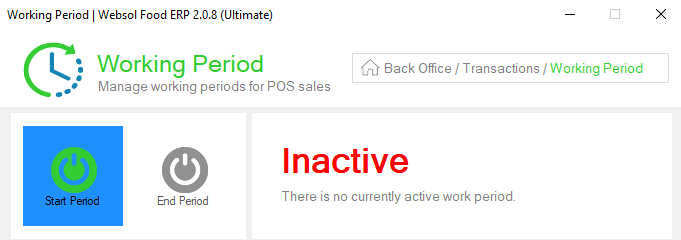
Step 6. In the "Working Period" window, click on the "Start Period" button(The message box appears "New Working Period has Been Started Successfully").
Step 7. Close the Window.
Step 8. On the left of the "Transaction" section, click on "New POS Sale".
Step 9. The "Open Sale Register" window appears.
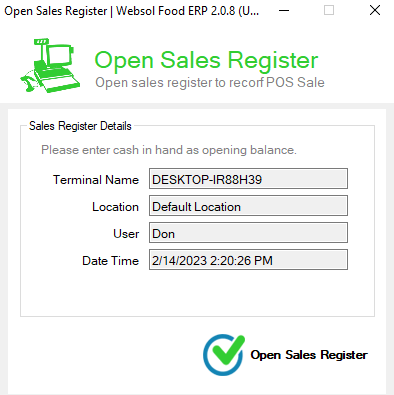
Step 10. The open sales Register Pop-up shows the location, date, and time of the start period.
Step 11. look at the below of the "Open Sales Register" window, and click on the "Open Sales Register" button.
Step 12. After clicking the open sales register button the "POS Sale Screen" appears.
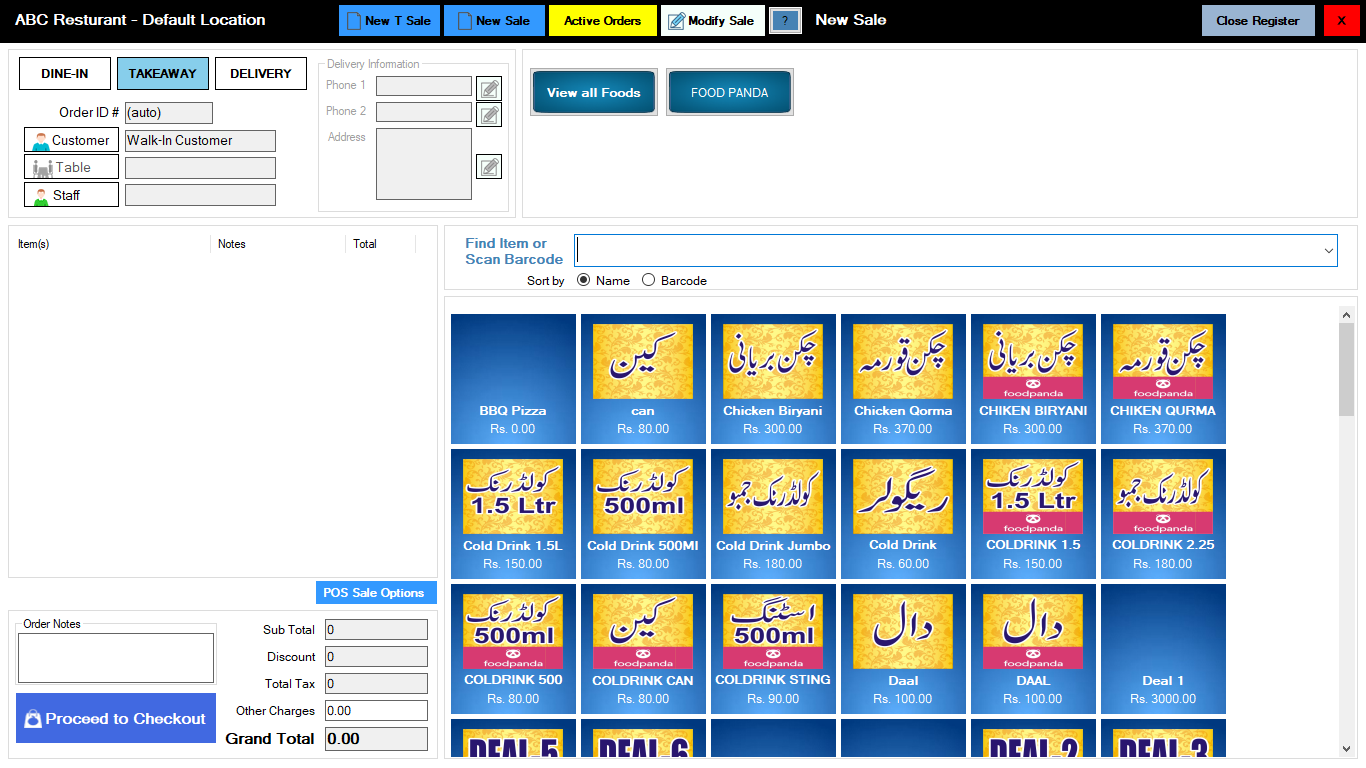
Step 13. Perform your sales
End the Working
After performing your sales the day was ending then you have to close the Register and working period. For closing the registers and working period follow the given steps.
Step 1. on the right-top of the "POS Sale Screen", click on the "Close Register" button.
Step 2. The "Close Register" Pop-up appears on the Screen.
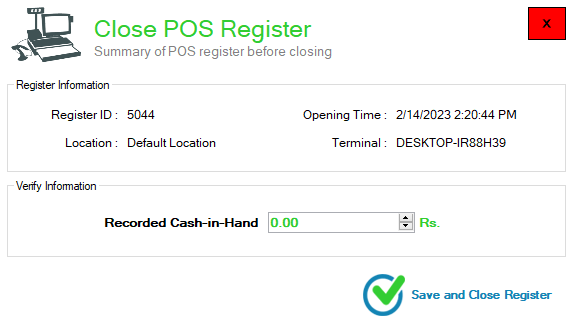
Step 3. On the "Close Register" Pop-up, Enter today's cash in the "Recorded Cash-in-Hand" field.
Step 4. On the "Close Register" Pop-up, click on the "Save and Close Register" button(The message box appears "Register has Been Closed Successfully").
step 5. Close the window.
Step 6. On the "Transaction" section, click on "Working Period"
Step 7. The "Working Period" window appears on the screen.
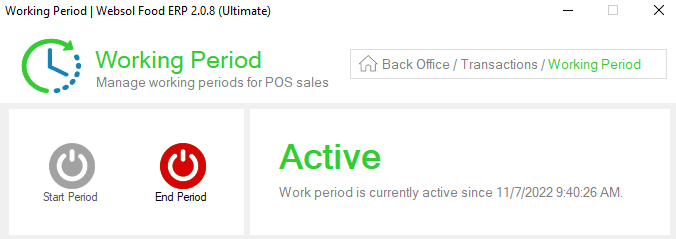
Step 8. In the "Working Period" window, click on the "End Period" button(The message box appears "New Working Period has Been Started Successfully").
Step 9. After clicking on "Yes" in the message box. Again (message Box appears "Working Period had been ended successfully. Do you want to print working period summary") if you want to print the Working summary then click Yes.
Step 10. The "Working Period Summary Report" window appears on the screen.
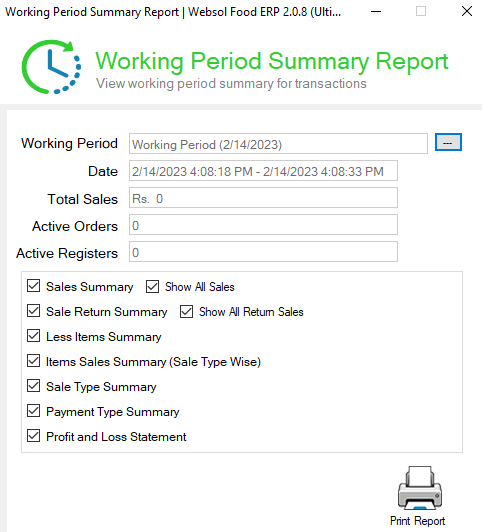
Step 11. On the "Working Period Summary Report" window, select the working period by clicking the "..." button in the line of the "Working Period" field.
Step 12. On the bottom of the "Working Period Summary Report" window, click on the "Print Report" button.
Step 13. Close the Window.
