
Dine-in zones help you organize seating areas in your restaurant, such as Ground Floor, Family Area, Rooftop, or VIP Section. In Websol Bawarchi POS, you can create multiple dine-in zones and assign tables to them for smoother order handling and better staff coordination.
This guide explains how beginners can quickly add a new dine-in zone in the software.
Steps to Create a Dine-In Zone
Step 1: Log In to Bawarchi POS
-
Enter your credentials and access the Main Back Office dashboard.
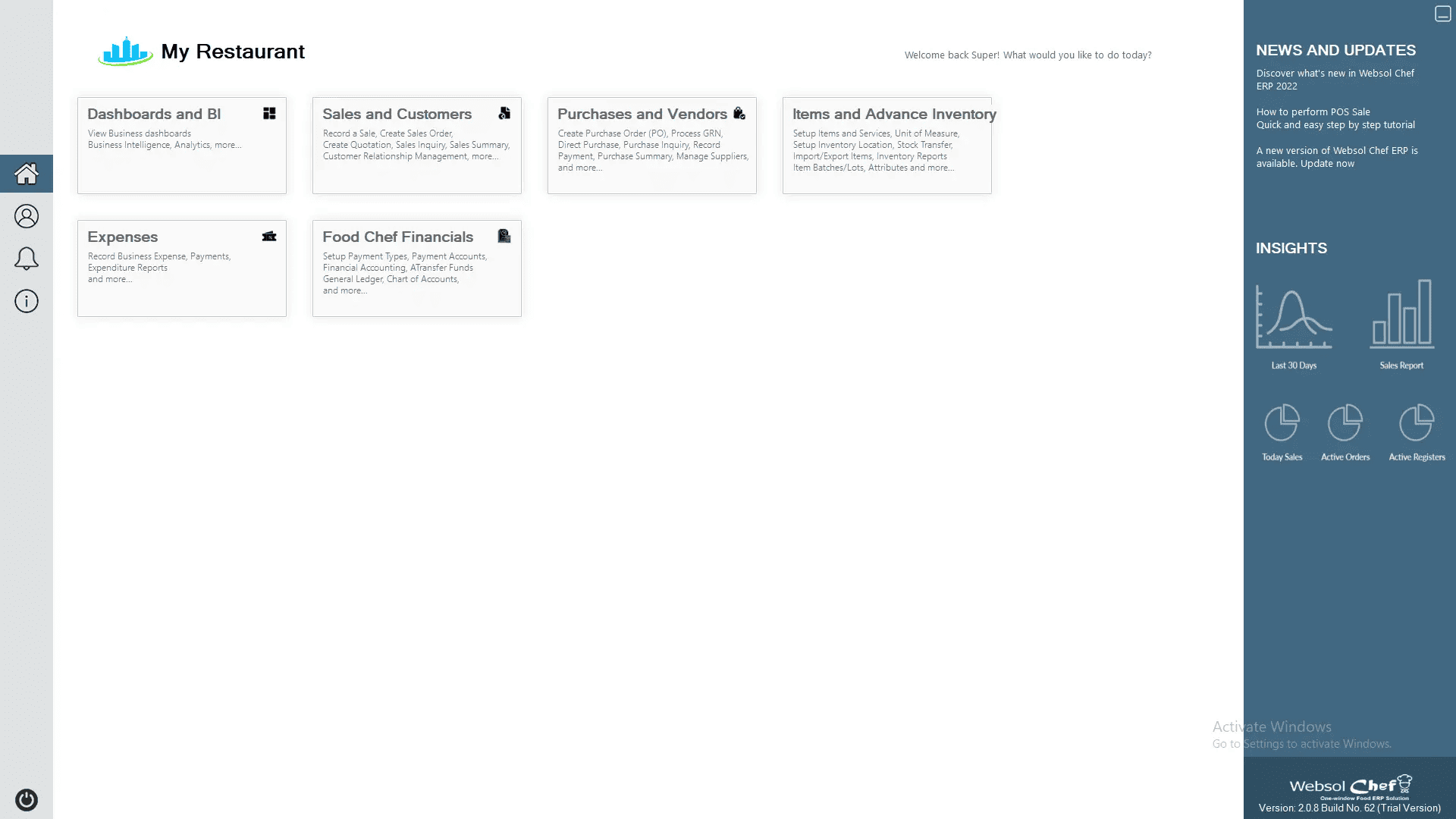
Step 2: Open the Sales & Customers Module
-
Click on “Sales and Customers.”

Step 3: Open Sales Management
-
The Sales Management window will appear with the Transactions panel.
Step 4: Go to Maintenance
-
On the tab bar, click “Maintenance.”
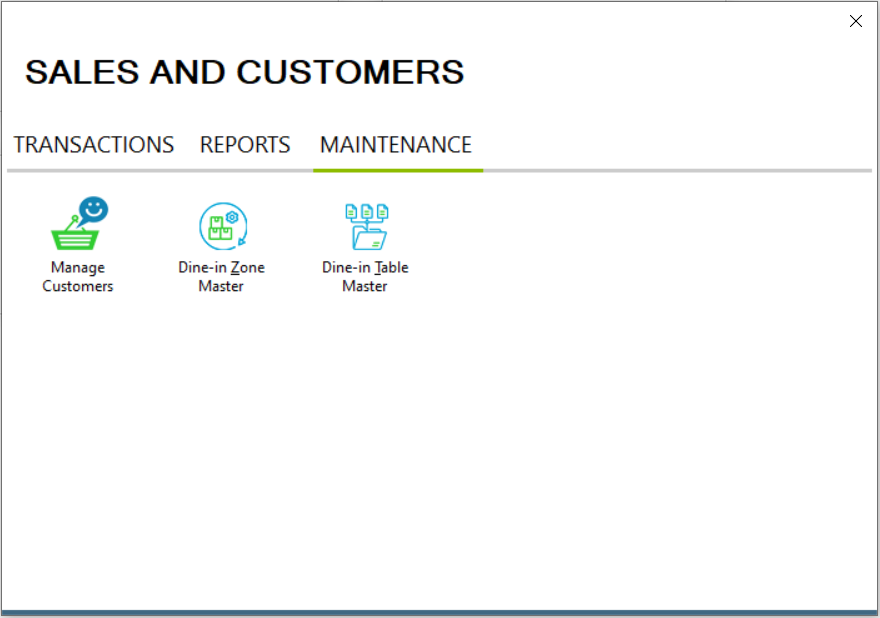
Step 5: Open Dine-In Zone Master
-
On the Maintenance section, click “Dine-In Zone Master.” The Zone Master screen will open.
Step 6: Enter Zone Details
In the Add/Update Zone panel, fill in:
-
Zone Name: Enter a name, e.g., 1st Floor, Family Hall, Garden Area, etc.
-
Long Description: Add more details, e.g., 1st floor has 10 tables, Rooftop view, etc.
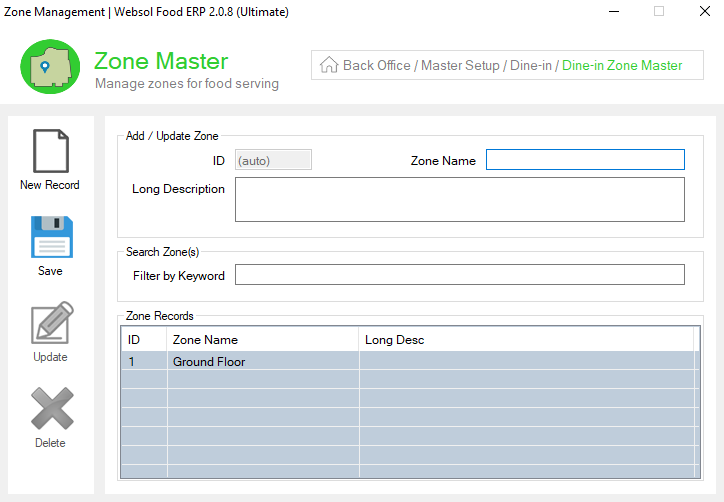
Step 7: Save the Zone
-
Click on the “Save” Button.
-
A confirmation message appears: “Record has been added successfully.”
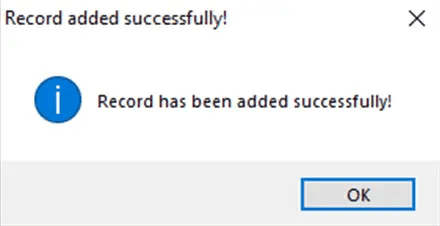
Step 8: Close the Window
-
Click the close button on the top-right to exit.
Click Here To Watch Video Tutorial
Pro Tip:
Use clear and meaningful zone names like VIP Lounge, Outdoor Area, or Smoking Zone. This helps waiters quickly identify where to place orders and reduces confusion during busy hours.
Summary
Adding a dine-in zone in Websol Bawarchi POS is simple. Just open the Sales & Customers module, access the Dine-In Zone Master, enter zone details, and save. Organized zones improve table management and help your restaurant staff work more efficiently.
Keywords
-
Dine-In Zone Setup
-
Bawarchi POS Zone
-
Restaurant Seating Management
-
Add Zone POS
-
Websol Bawarchi POS Guide
-
Dine-In Area Setup
-
Zone Master POS
CALL US NOW!
+92 311 052 0111 | +92 21 3722 1800
PRODUCT DETAILS
https://www.pointofsale.pk/products/bawarchi/
#websol #websoltechnologies #websolpos #bawarchipos #restaurantpos #restaurantsoftware #possoftware #cashregister #kitchendisplaysystems #billingapp #billingsoftware #fbrpos #srbpos #accountingsoftware #accountingsolutions
