
Review your Reports Related to Items and Inventory Management In Websol Bawarchi POS
The Websol Bawarchi POS allows you to review your reports about items and inventory. These reports include a stock report, an items report, and an inventory movement report.
Overview Reports of Items and Inventory
Step 1. Log in to the system and access the Main Back Office user interface.
Step 2. On the appeared window, click "Item and Advanced Inventory".
Step 3. On the appearing "Item and Inventory Management" window, the "Transactions" section is shown on your screen.
Step 4. On the tab bar, click on the "Reports" button.
Items Stock Report
- In the "Reports" section, click on the "Stock Report".
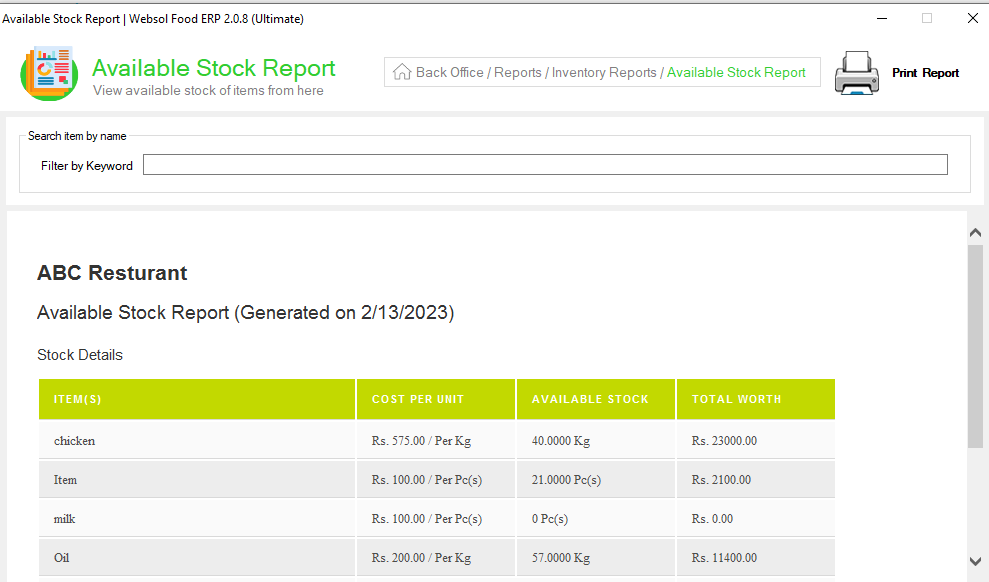
- In the Stock Reports window you have to review the details about your all Stockable items include (cost price, available quantity, and total worth).
- In the "Search Item By Name" panel, you can also search for any specific item in the search box & review the reports given in the table.
- At the top-right, click on the "Print Report" button if you want to print the reports.
- Close the window.
Low Stock Report
- In the "Reports" section, click on the "Low Stock Report".
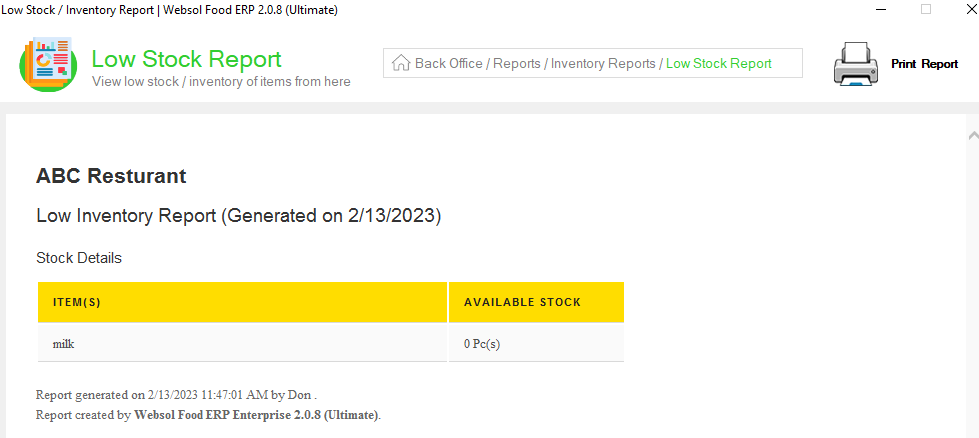
- In the Low Stock Report window, you have to review the details about your items that are below the re-order level or are out of stock.
- At the top-right, click on the "Print Report" button if you want to print the reports.
- Close the window.
Expired Stock Report
- In the "Reports" section, click on the "Expired Stock Report".
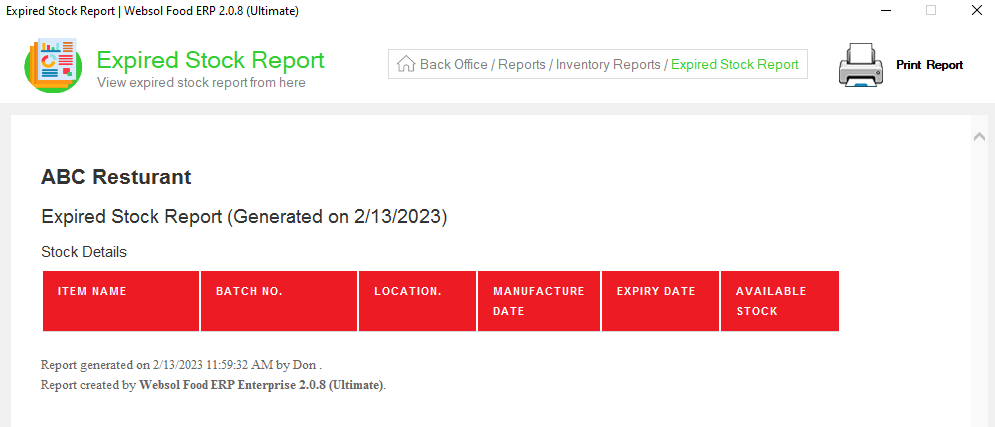
- In the Expired Stock Report window you have to review the details about your expired items.
- At the top-right, click on the "Print Report" button if you want to print the reports.
- Close the window.
Item Batch Report
- In the "Reports" section, click on the "Item Batch Report".
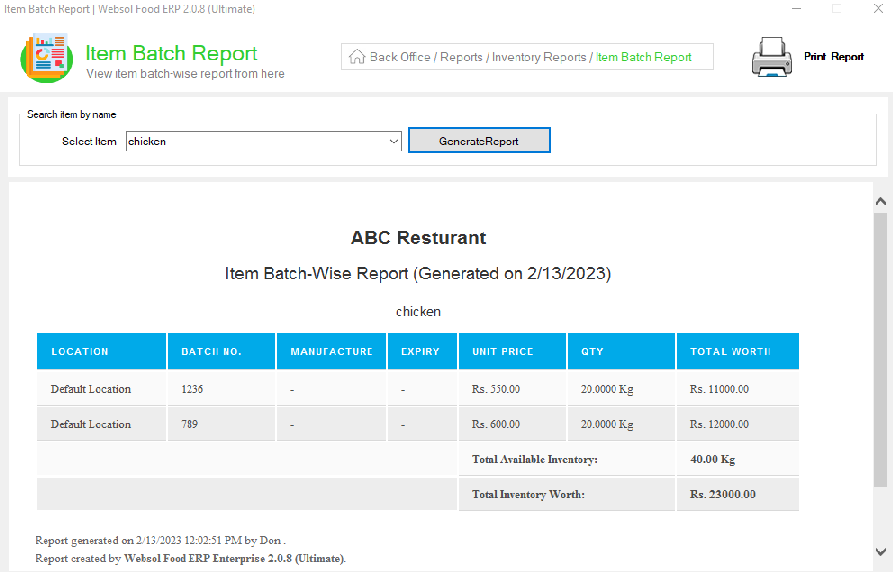
- In the "Select Item By Name" panel, select the item from the "Select Item" dropdown, and click on the "Generate Report" button.
- After generating the item details, you review all the batches of selected items including (location, unit price, quantity, and total worth)
- At the top-right, click on the "Print Report" button if you want to print the reports.
- Close the window.
Inventory Movement Report
- In the "Reports" section, click on the "Item Inventory Movement Report."
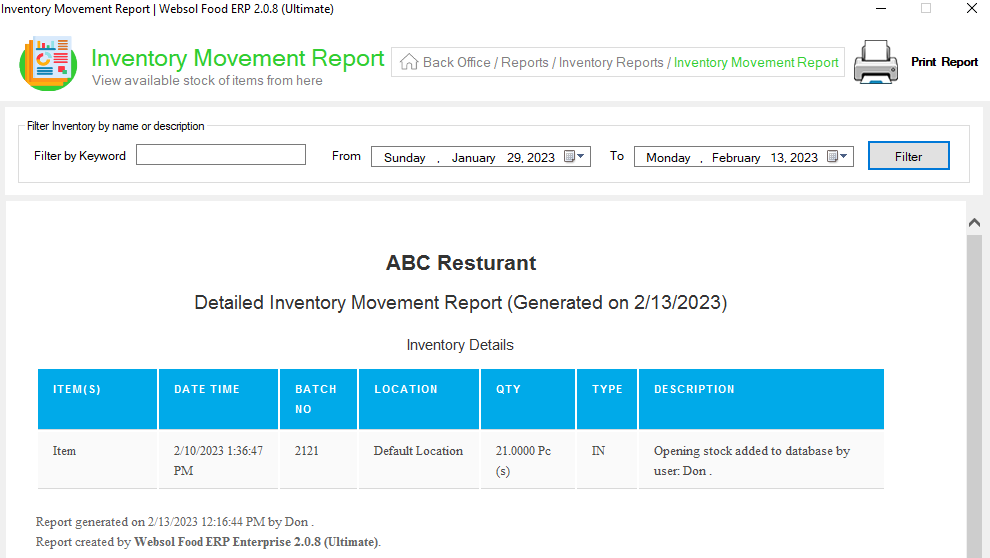
- In the "Filter inventory by name or description" panel, select the date from "From" & "To", and click on the "Filter" button.
- In the Inventory Movement Report window, you have to review the details about the items in which the report shows the item that is in or out just like your purchases and sales or in which time or in which location.
- At the top-right, click on the "Print Report" button if you want to print the reports.
- Close the window.
Item Report
- In the "Reports" section, click on the "Item Report."
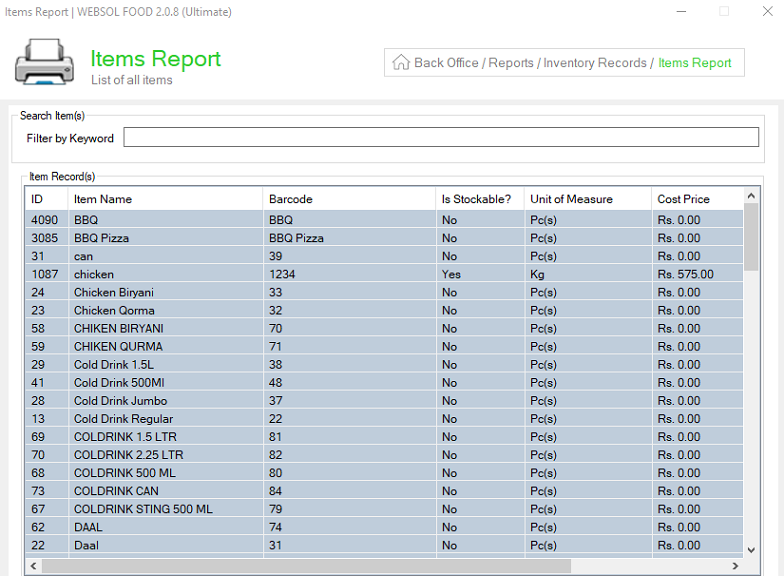
- In the Item Report window you have to review details about your all the items include (cost price, stock able? unit of measurement, and barcode)
- Close the window.
