
How to Create a Chart of Accounts in Muhasib ERP
Websol Muhasib ERP allows you to create a chart of accounts This was a great and advanced feature provided by Websol Technologies in the Muhasib ERP software. A chart of accounts typically includes categories such as assets, liabilities, equity, income, and expenses. These categories are further broken down into subcategories, which provide a more detailed view of the business's financial transactions.
In POS software, the chart of accounts may also include categories specific to the retail industry, such as inventory, sales, and cost of goods sold. This allows the business to track sales and inventory levels in real time, and to generate reports that provide valuable insights into their financial performance.
Create a Chart of Account
Follow the steps given below to create a chart of accounts in the software.
Step 1. Log in to the system and access the Main Back Office user interface.
Step 2. On the appeared window, click "Muhasib Financials".
step 3. On the appearing "Muhasib Financials" window, the "Transactions" section is shown on your screen.
Step 4. On the tab bar, click on "Maintenance".
Step 5. On the right of the "Maintenance" window, click on "Chart of Accounts".
Step 6. The Chart of Accounts" window appears on the screen.
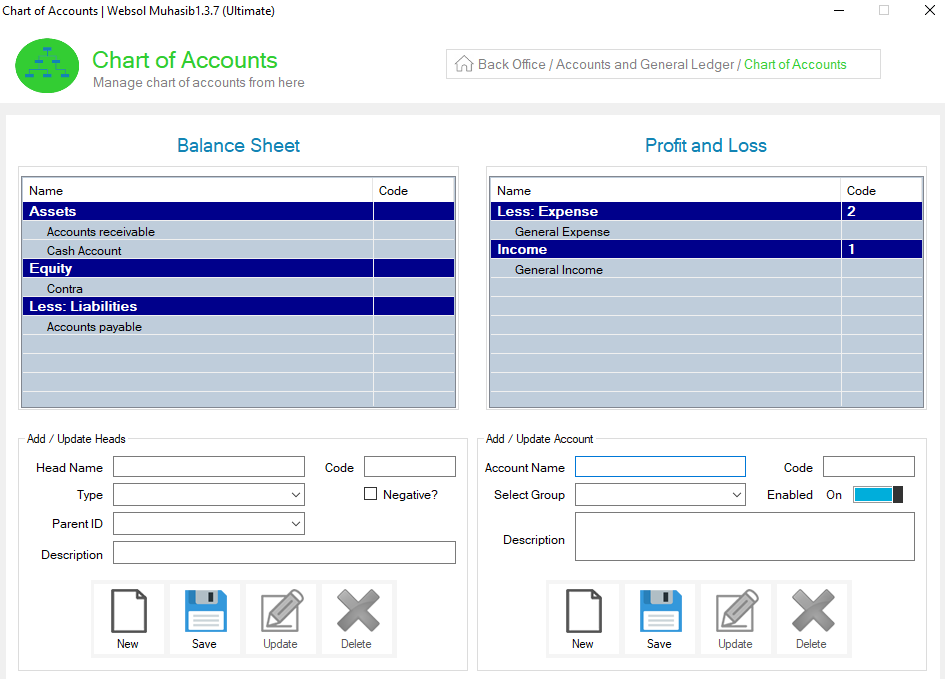
Step 7. In the "Chart of Accounts" field, look at the "Add/update heads" panel and follow the details given below to create a head.
- Enter the head name in the "Head Name" field like (ABC account).
- Select the type from the "Type" dropdown.
- Select parent id from the "Parent ID" dropdown.
- Enter the description in the "Description" field like (testing account).
- Look at the below and click on the "Save" button (The message box appears as "Record Has Been Added Successfully").
Step 8. The head is shown in the table above where you select the type of head.
Step 9. Look at the "Add/update accounts" panel, and follow the details in the following.
- Enter the account name in the "Account Name" field.
- Select the group from the "Select Group " dropdown.
- Enter the description in the "Description" field.
- Look at the below and click on the "Save" button (The message box appears as "Record Has Been Added Successfully").
Step 10. Close the window.
CALL US NOW!
+92 311 052 0111 | +92 21 3722 1800
PRODUCT DETAILS
https://www.pointofsale.pk/products/muhasib/
Popular Searches for Create Chart of Accounts in Websol Muhasib ERP
- Muhasib ERP with payment accounts in Pakistan.
- Muhasib Financial settings
- Muhasib ERP settings
- How to set the financials settings in the software.
- ERP software tax
- How to see the accounts charts in muhasib ERP
- How to create a chart of accounts in muhasib ERP
- How to create the heads in Muhasib ERP?
- How to create the accounts in Muhasib ERP?
- Business in Muhasib ERP.
- ERP Software in Lahore, Karachi, Islamabad, Peshawar, Quetta, and all over Pakistan with Interactive Sale screens and customers.
- Websol Muhasib ERP is an All-in-One, One-window business management software solution in Karachi, Lahore, Islamabad, and all over Pakistan.
- Which is the best All-in-One, One-window business management software solution in Pakistan? Websol Muhasib ERP
- Muhasib ERP: Best all-in-one business software solution System.
- Muhasib ERP vs Business management solutions.
- Business ERP Karachi: Muhasib ERP.
- Business ERP Lahore: Muhasib ERP.
- Business ERP Islamabad: Muhasib ERP.
- Muhasib ERP with sales management systems.
- Muhasib ERP with integrated inventory management System.
- Muhasib ERP business running Software System.
- Muhasib ERP POS with purchase Management in business.
- Sales order ticket in Muhasib ERP.
- Business Management Software Pakistan
#websol #websoltechnologies #websolerp #muhasiberp #businesserp #businesssoftware #possoftware #cashregister #businessmanagement #erppos #crmsystem #possystem #billingapp #billingsoftware #fbrpos #srbpos #erpsolutions #accountingsoftware #accountingsolutions #erpsolutions #erpaccounting
