
Quick Overview of Stock Report in Muhasib ERP
Websol Muhasib ERP allows you to quickly review your stock report easily. This was a great and advanced analytics tool provided by Websol Technologies in the Muhasib ERP software. This report shows the stock of all the added items in the software. It will also help users or business owners to view the item's stock individually by searching for an item or viewing the stock locations, categories & brand wise also.
Overview of Stock Report
Follow the steps below to view the stock report in the software.
Step 1. Log in to the system and access the Main Back Office user interface.
Step 2. On the appeared window, click "Item and Advanced Inventory".
step 3. On the appearing "Item and Inventory Management" window, the "Transactions" section is shown on your screen.
Step 4. On the tab bar, click on "Report".
Step 5. On the "Report" window, click on the "Stock Report"
Step 6. The "Available Stock Report" window appears on the screen.
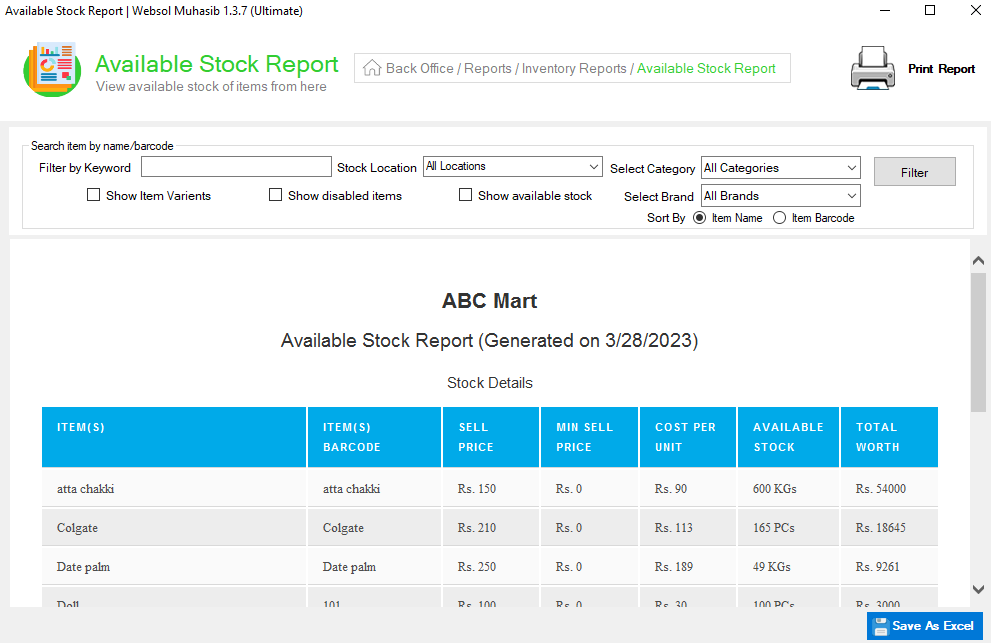
Step 7. In the "Available Stock Report" users can easily view the total stock of the products, for more follow the steps given below.
- If you want to see a report of any specific item then search the item name in the "Filter by Keyword" field.
- If you want to see the stock of a single location, select the location from the "Stock Location" dropdown.
- If you want to see the stock of any specific category, select the category from the "Select Category" dropdown.
- If you want to see the stock of any specific brand, select the brand from the "Select Brand" dropdown.
- If you want to see variants item the tick mark on the "Show Item Varients" label.
- If you want to see disabled items the tick mark on the "Show Disable Items" label.
- If you want to see only available stock items the tick mark on the "Show Available Stock" label.
- Chose an option (Item name, Item barcode) in the "Sort By" label.
Step 8. After giving details in the fields, click on the "Filter" button.
Step 9. The below window shows the report of stock.
Step 10. Look at the top and click the "Print Report" button to print the report.
Step 11. Look at the below and click on the "Save As Excel" button if you want to save the report in the system as Excel.
Step 12. Close the window.
CALL US NOW!
+92 311 052 0111 | +92 21 3722 1800
PRODUCT DETAILS
https://www.pointofsale.pk/products/muhasib/
Popular Searches for Stock Report in Websol Muhasib ERP
- Muhasib ERP with Items and inventory in Pakistan.
- Muhasib ERP with the stock report.
- Muhasib ERP with the available stock report.
- ERP software reports
- ERP software stock
- How to see the stock report in Muhasib ERP?
- How to view the items that are not below the re-order level in Muhasib ERP?
- How to view the stock report in Muhasib ERP?
- How to see the items that are in stock.
- How to print the stock report in the software
- How to save the stock report in the software
- How to view the available stock location wise
- Business analytics in Muhasib ERP.
- Business insights in Muhasib ERP.
- Reports of available stock in business Muhasib ERP.
- ERP Software in Lahore, Karachi, Islamabad, Peshawar, Quetta, and all over Pakistan with Interactive Sale screens and customers.
- Websol Muhasib ERP is an All-in-One, One-window business management software solution in Karachi, Lahore, Islamabad, and all over Pakistan.
- Which is the best All-in-One, One-window business management software solution in Pakistan? Websol Muhasib ERP
- Muhasib ERP: Best all-in-one business software solution System.
- Muhasib ERP vs Business management solutions.
- Business ERP Karachi: Muhasib ERP.
- Business ERP Lahore: Muhasib ERP.
- Business ERP Islamabad: Muhasib ERP.
- Muhasib ERP with sales management systems.
- Muhasib ERP with integrated inventory management System.
- Muhasib ERP business running Software System.
- Muhasib ERP POS with purchase Management in business.
- Sales order ticket in Muhasib ERP.
- Business Management Software Pakistan
#websol #websoltechnologies #websolerp #muhasiberp #businesserp #businesssoftware #possoftware #cashregister #businessmanagement #erppos #crmsystem #possystem #billingapp #billingsoftware #fbrpos #srbpos #erpsolutions #accountingsoftware #accountingsolutions #erpsolutions #erpaccounting
