
Websol Bawarchi POS makes it easy to create and manage your customers directly from the Back Office. Whether you run a restaurant, café, or canteen, adding customers helps you record sales accurately, offer credit sales, and track customer information with ease.
This guide explains how to create a new customer step by step—even if you're a complete beginner.
Steps to Create a Customer in Websol Bawarchi POS
Step 1: Log In to Websol Bawarchi POS
-
Enter your login details and access the Main Back Office.
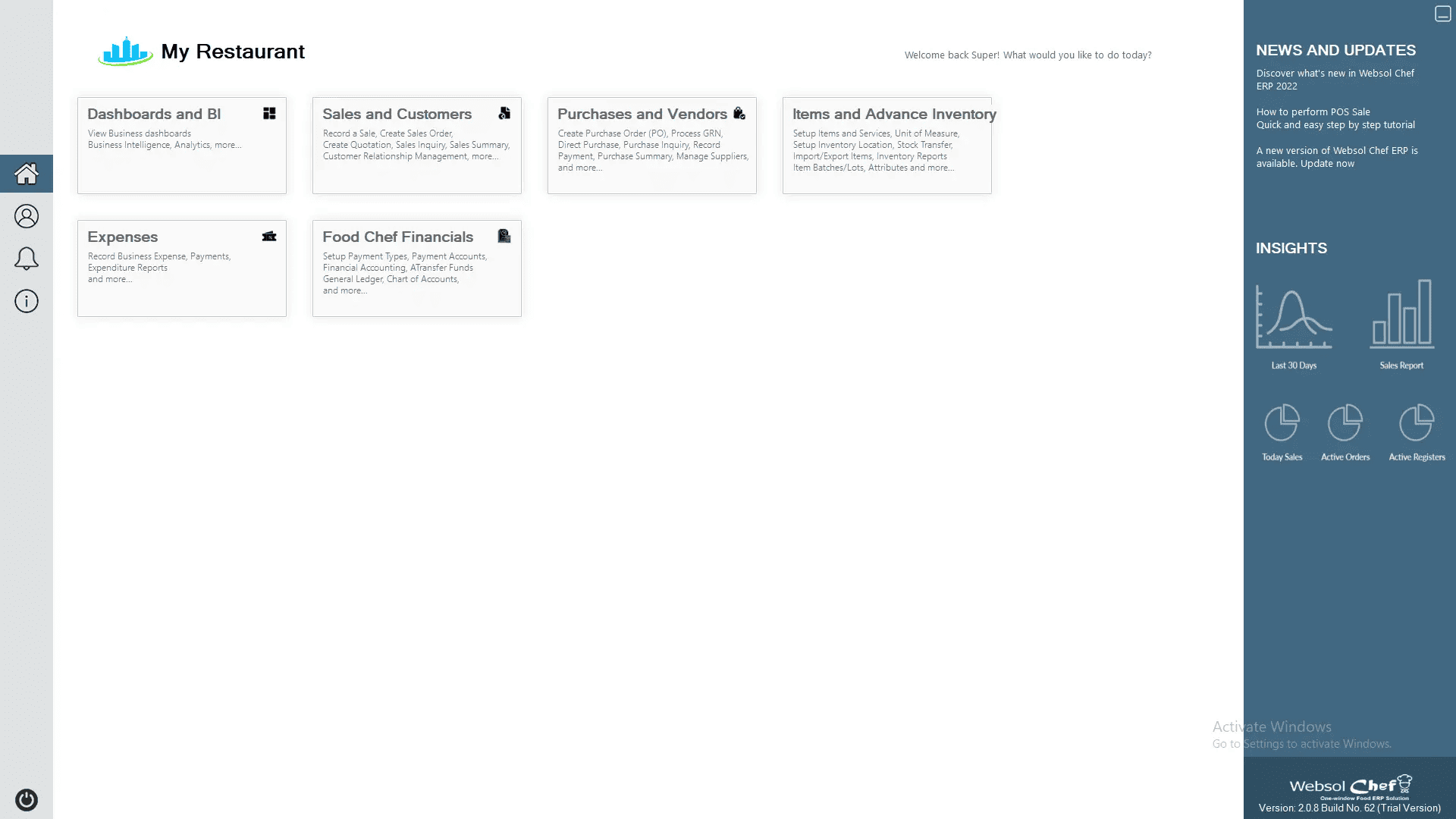
Step 2: Open the Sales & Customer Module
-
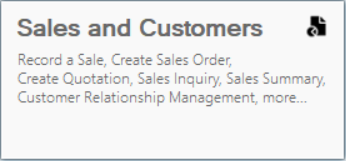
From the main menu, click “Sales & Customer”.
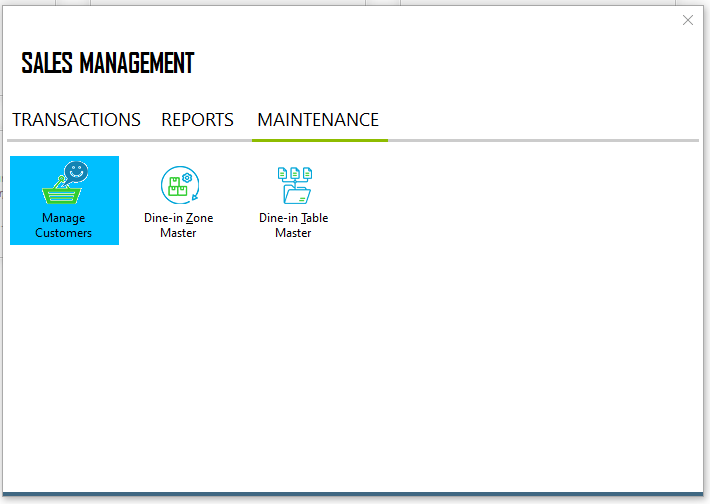
Step 3: Go to Customer Maintenance
-
At the top bar, click “Maintenance”.
-
Select “Manage Customer” from the maintainance section.
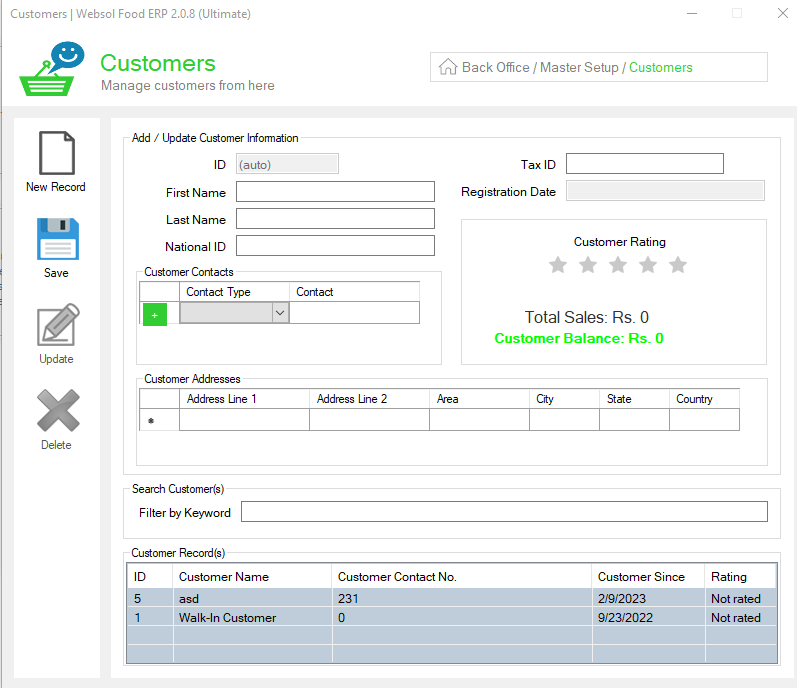
Step 4: Fill in Customer Details
A new Manage Customer window will open. Enter the customer's following information:
-
Customer Name: Enter the customer’s name (e.g., Walk-in Customer).
-
National ID (Optional): Enter the customer’s 13 digit national identity number.
-
Contact Type: Select the contact type from the dropdown (e.g., Mobile, Home, Office, etc.)
-
Contact Number: Enter the customer’s phone number.
-
Address (Optional): Enter the customer’s address.
-
Tax ID (Optional): Enter the customer’s national tax number.
Step 5: Save the Customer Record
-
Click “Save” on the left side.
-
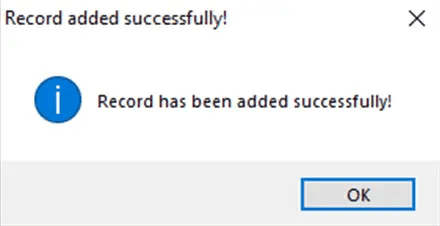
A message will appear: “Your record has been added successfully.”
Step 6: Close the Window
-
Click the Close button in the top-right corner to exit the Manage Customer screen.
Click Here To Watch Video Tutorial
Pro Tip:
Regularly update customer details (contact number, address, tax ID) to keep your records clean and avoid errors during sales or credit transactions.
Summary
Creating customers in Websol Bawarchi POS is quick and simple. Just open the Sales & Customer module, fill out the customer information, save the record, and you’re done. This helps you manage customer-based sales, credit options, and reporting more efficiently.
Keywords
-
Customer Management
-
Create Customer
-
Websol Bawarchi POS Customers
-
Manage Customer Records
-
POS Customer Setup
-
Manage Customer
-
Restaurant POS Pakistan
-
Bawarchi POS Guide
CALL US NOW!
+92 311 052 0111 | +92 21 3722 1800
PRODUCT DETAILS
https://www.pointofsale.pk/products/bawarchi/
#websol #websoltechnologies #websolpos #bawarchipos #restaurantpos #restaurantsoftware #possoftware #cashregister #kitchendisplaysystems #billingapp #billingsoftware #fbrpos #srbpos #accountingsoftware #accountingsolutions
