
How to Configure Transaction Settings in Websol Muhasib ERP
Websol Muhasib ERP allows you to configure your transaction settings in which you have the right to Manage your transactions. These are the great and advanced settings that Websol Technologies provides you in the software. This will help business owners to manage the transactions settings easily.
https://www.youtube.com/watch?v=yC4V62wRbz4&list=PLr15a5Cpksu0LAQ8YHEveBPEaoRIz5CIt&pp=iAQB
Configure Transaction Setting
To configure your transaction setting here are the steps to follow:
Step 1. Log in to the system and access the Main Back Office user interface.
Step 2. Find the User Profile Button on the left-middle grey strip, and click on the user profile button.
Step 3. User profile windows appear on the screen, click on the "Global Configurations" button.
Step 4. On the appearing "Global Configurations" window, the "POS Settings" section is shown on your screen.
Step 5. On the tab bar, click on Transaction Settings.
Step 6. The Transaction settings Section is shown on the window.
Step 7. In the "Transaction Setting" window, the "Sales" section appeared on the screen.
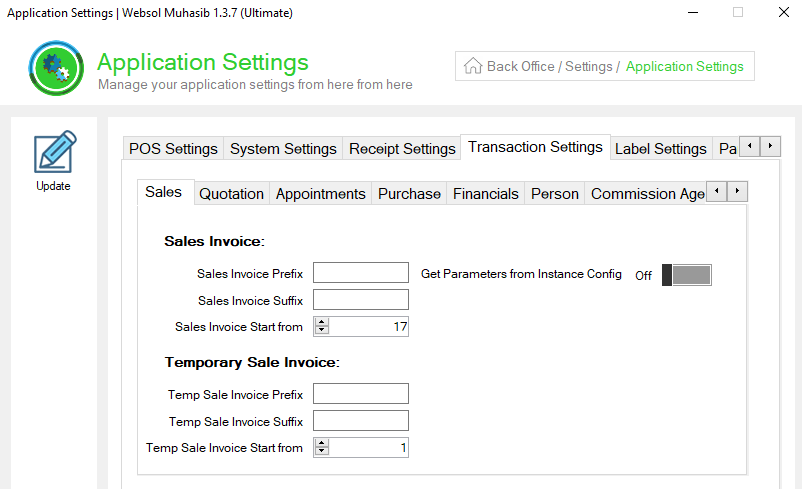
Sales Section:
In the sale section, you can enter the invoice number where you want to set the start of new invoices. you can also edit the prefix and suffixes in the invoice
Step 8. To configure the "Sales" section, follow the details given below.
- In the "Sale Invoice Prefix" field, enter the sale invoice prefix.
- In the "Sale Invoice Suffix" field, enter the sale invoice suffix.
- In the "Sale Invoice Start From" field, set the sale invoice starting number.
- In the "Temp Sale Invoice Prefix" field, enter the sale invoice prefix for the te4mp sale.
- In the "Temp Sale Invoice Suffix" field, enter the sale invoice suffix for the temp sale.
- In the "Temp Sale Invoice Start From" field, set the sale invoice starting number for the temp sale.
Step 9. On the left of the window, click on Update Button (a message box appears "System Configuration has been Updated successfully").
Quotation Section:
In the quotation section, you can enter the quotation number where you want to set the start of a new quotation. you can also edit the prefix and suffixes in the quotations.
Step 1. On the tab bar of Transaction Settings, click on the "Quotation" section.
Step 2. The "Quotation" Section appears on the screen.
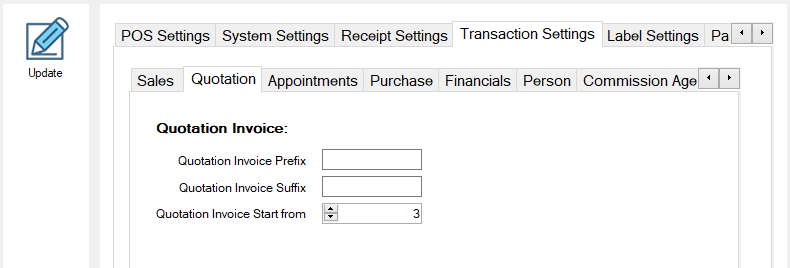
Step 3. To configure the "Quotation" section, follow the details given below.
- In the "Quotation Invoice Prefix" field, enter the quotation invoice prefix.
- In the "Quotation Invoice Suffix" field, enter the quotation invoice suffix.
- In the "Sale Invoice Start From" field, set the quotation invoice starting number.
Step 4. On the left of the window, click on Update Button (a message box appears "System Configuration has been Updated successfully").
Appointments Section:
In the appointment section, you can enter the appointment number where you want to set the start of new appointments. you can also edit the prefix and suffixes in the appointments.
Step 1. On the tab bar of Transaction Settings, click on the "Appointments" section.
Step 2. The "Appointments" Section appears on the screen.
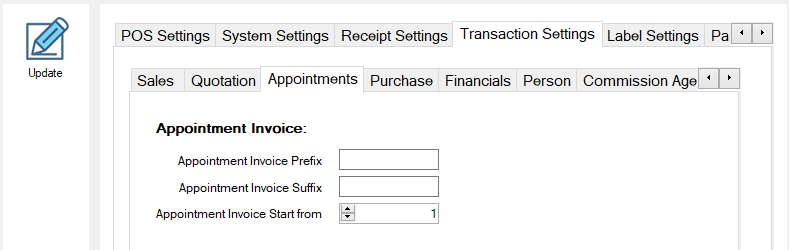
Step 3. To configure the "Appointments" section, follow the details given below.
- In the "Appointment Invoice Prefix" field, enter the appointment invoice prefix.
- In the "Appointment Invoice Suffix" field, enter the appointment invoice suffix.
- In the "Appointment Invoice Start From" field, set the appointment invoice starting number.
Step 4. On the left of the window, click on Update Button (a message box appears "System Configuration has been Updated successfully").
Purchase Section:
In the purchase section, you can enter the starting number of purchases. You can also edit the prefix and suffixes in the purchases.
Step 1. On the tab bar of Transaction Settings, click on the "Purchase" section.
Step 2. The "Purchase" Section appears on the screen.
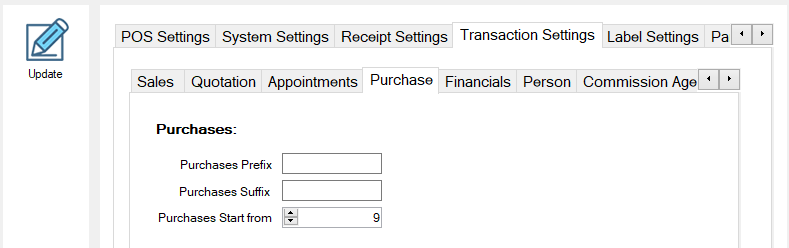
Step 3. To configure the "Purchase" section, follow the details given below.
- In the "Purchases Prefix" field, enter the purchases prefix.
- In the "Purchases Suffix" field, enter the purchases suffix.
- In the "Purchases Start From" field, set the purchases starting number.
Step 4. On the left of the window, click on Update Button (a message box appears "System Configuration has been Updated successfully").
Financials Section:
In the financials section, you can enter the starting number of expenses, expense payments, and vouchers. You can also edit the prefix and suffixes of the expenses, expense payments, and vouchers.
Step 1. On the tab bar of Transaction Settings, click on the "Financials" section.
Step 2. The "Financials" Section appears on the screen.
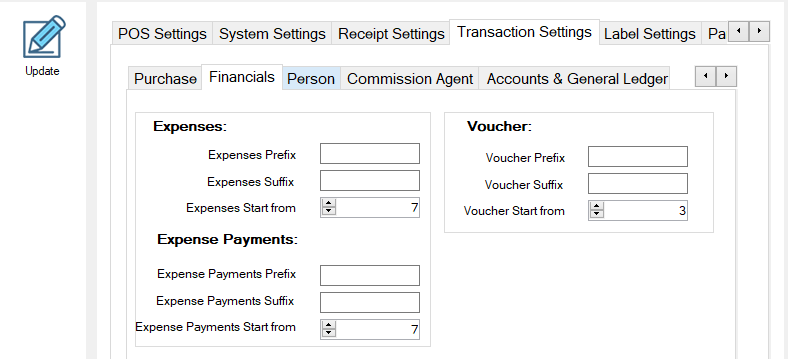
Step 3. To configure the "Financials" section, follow the details given below.
- In the "Expenses Prefix" field, enter the expenses prefix.
- In the "Expenses Suffix" field, enter the expenses suffix.
- In the "Expenses Start From" field, set the expenses starting number.
- In the "Expense Payments Prefix" field, enter the expense payments prefix.
- In the "Expense Payments Suffix" field, enter the expense payments suffix.
- In the "Expense Payments Start From" field, set the expense payments starting number.
- In the "Voucher Prefix" field, enter the voucher prefix.
- In the "Voucher Suffix" field, enter the voucher suffix.
- In the "Voucher Start From" field, set the voucher starting number.
Step 4. On the left of the window, click on Update Button (a message box appears "System Configuration has been Updated successfully").
Person Section:
In the person section, you can set the starting number of customer ledger, customer payments, and supplier payments. You can also edit the prefix and suffixes of the customer and suppliers.
Step 1. On the tab bar of Transaction Settings, click on the "Person" section.
Step 2. The "Person" Section appears on the screen.
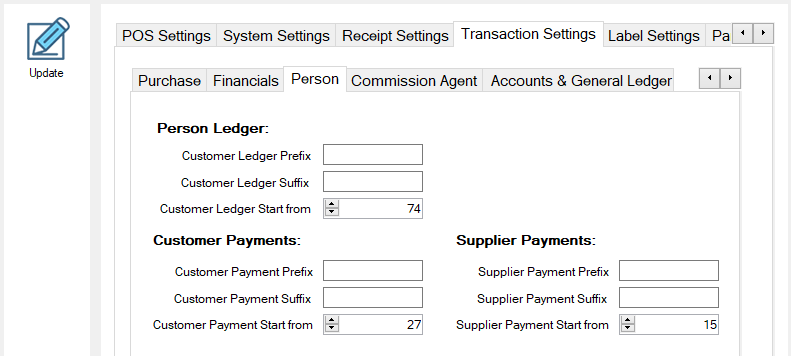
Step 3. To configure the "Person" section, follow the details given below.
- In the "Customer Ledger Prefix" field, enter the customer ledger prefix.
- In the "Customer ledger Suffix" field, enter the customer ledger suffix.
- In the "Customer Legder Start From" field, set the customer ledger starting number.
- In the "Customer Payments Prefix" field, enter the customer payments prefix.
- In the "Customer Payments Suffix" field, enter the customer payments suffix.
- In the "Customer Payments Start From" field, set the customer payments starting number.
- In the "Supplier Payments Prefix" field, enter the supplier payments prefix.
- In the "Supplier Payments Suffix" field, enter the supplier payments suffix.
- In the "Supplier Payments Start From" field, set the supplier payments starting number.
Step 4. On the left of the window, click on Update Button (a message box appears "System Configuration has been Updated successfully").
Commission Agent Section:
In the commission agent section, you can enter the starting number of the agent code. You can also edit the prefix and suffixes of the applicator who was the commission agent of the company
Step 1. On the tab bar of Transaction Settings, click on the "Commission Agent" section.
Step 2. The "Commission Agent" Section appears on the screen.
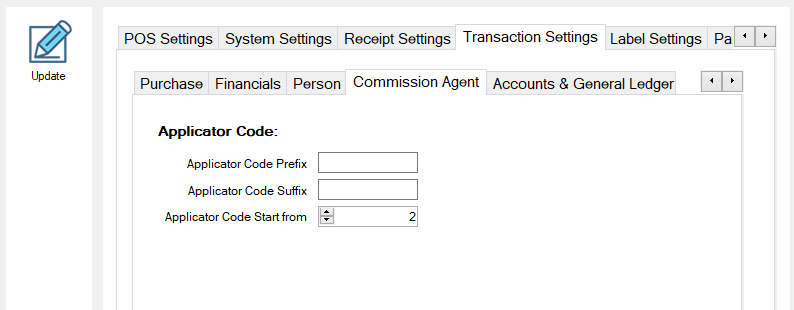
Step 3. To configure the "Commission Agent" section, follow the details given below.
- In the "Applicator Code Prefix" field, enter the applicator code prefix.
- In the "Applicator Code Suffix" field, enter the applicator code suffix.
- In the "Applicator Code Start From" field, set the applicator code starting number.
Step 4. On the left of the window, click on Update Button (a message box appears "System Configuration has been Updated successfully").
Accounts & General Ledger Section:
In the accounts and general ledger section, you can enter the starting number of the general ledger. You can also edit the prefix and suffixes of the general ledger of the company
Step 1. On the tab bar of Transaction Settings, click on the "Accounts & General Ledger" section.
Step 2. The "Accounts & General Ledger" Section appears on the screen.
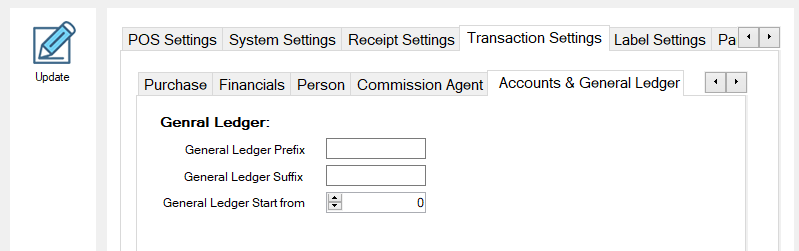
Step 3. To configure the "Accounts & General Ledger" section, follow the details given below.
- In the "General Ledger Prefix" field, enter the general ledger prefix.
- In the "General Ledger Suffix" field, enter the general ledger suffix.
- In the "General Ledger Start From" field, set the general ledger starting number.
Step 4. On the left of the window, click on Update Button (a message box appears "System Configuration has been Updated successfully").
Step 5. Close the window
Step 6. On the left of the window, click on Update Button (a message box appears "System Configuration has been Updated successfully").
Step 7. Close the window.
CALL US NOW!
+92 311 052 0111 | +92 21 3722 1800
PRODUCT DETAILS
https://www.pointofsale.pk/products/muhasib/
Popular Searches for Backup / Restore Data in Websol Muhasib ERP
- Muhasib ERP with Transaction settings in Pakistan.
- Muhasib ERP with settings.
- Muhasib ERP with configured settings.
- ERP software global configurations
- ERP software transactions.
- How to configure sales settings in Muhasib ERP?
- How to configure quotation settings in Muhasib ERP?
- How to configure appointment settings in Muhasib ERP?
- How to configure purchase settings in Muhasib ERP?
- How to configure financial settings in Muhasib ERP?
- How to configure person settings in Muhasib ERP?
- How to configure commission agent settings in Muhasib ERP?
- How to configure accounts & general ledger settings in Muhasib ERP?
- Business settings in Muhasib ERP.
- Business POs settings in Muhasib ERP.
- ERP Software in Lahore, Karachi, Islamabad, Peshawar, Quetta, and all over Pakistan with Interactive Sale screens and customers.
- Websol Muhasib ERP is an All-in-One, One-window business management software solution in Karachi, Lahore, Islamabad, and all over Pakistan.
- Which is the best All-in-One, One-window business management software solution in Pakistan? Websol Muhasib ERP
- Muhasib ERP: Best all-in-one business software solution System.
- Muhasib ERP vs Business management solutions.
- Business ERP Karachi: Muhasib ERP.
- Business ERP Lahore: Muhasib ERP.
- Business ERP Islamabad: Muhasib ERP.
- Muhasib ERP with sales management systems.
- Muhasib ERP with integrated inventory management System.
- Muhasib ERP business running Software System.
- Muhasib ERP POS with purchase Management in business.
- Sales order ticket in Muhasib ERP.
- Business Management Software Pakistan
#websol #websoltechnologies #websolerp #muhasiberp #businesserp #businesssoftware #possoftware #cashregister #businessmanagement #erppos #crmsystem #possystem #billingapp #billingsoftware #fbrpos #srbpos #erpsolutions #accountingsoftware #accountingsolutions #erpsolutions #erpaccounting
