
How to Configure POS Module Settings in Instance Settings in Muhasib ERP
Websol Muhasib ERP allows you to configure POS module settings in the software. In this Setting, you can assign default payment terms and payment cash accounts and also you can set the size of the POS screen and many more settings about the POS module. This was a great and advanced setting provided by Websol Technologies to business owners that helps business owners to set their POS module settings by their choice.
https://www.youtube.com/watch?v=yC4V62wRbz4&list=PLr15a5Cpksu0LAQ8YHEveBPEaoRIz5CIt&pp=iAQB
POS Module Settings.
To configure the POS module setting in the software, follow the steps given below.
Step 1. Log in to the system and access the Main Back Office user interface.
Step 2. Find the User Profile Button on the left-middle grey strip, and click on the user profile button.
Step 3. User profile windows appear on the screen, click on the "Instance Settings" button.
Step 4. On the appearing "Instance Settings" window, the "POS Module Settings" section is shown on your screen.
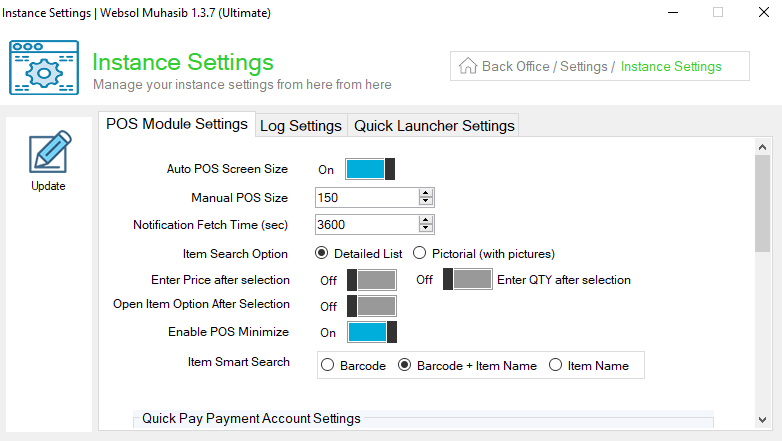
Step 5. On the "POS Module Settings" section, follow the given details.
- Enable/Disable the option "Auto POS size screen".
- In the "Manual POS size" field, set the size of the POS screen manually.
- In the "Notification fetch time (sec)" field, set the notification fetching time.
- Select the option in the "Item search option" label.
- Enable/Disable the option "Enter price after selection".
- Enable/Disable the option "Enter QTY after selection".
- Enable/Disable the option "Open item option after selection".
- Enable/Disable the option "Enable POS Minimize".
- Select the option from the "Item Smart Search" label.
Step 6. In the "Quick Pay Payment Account Settings" you can define the default payment term, and default payment account via card or cash.
- Enable the option "Enable POS Quick Pay".
- From the "Default Payment Type" dropdown, select the payment type.
- From the "Default Cash Payment Account" dropdown, select the payment account via cash.
- From the "Default Card Payment Account" dropdown, select the payment account via card.
Step 7. In the "POS find item window options (For UI 1)" panel, you can tick mark the options that you want to show when you find items.
Step 8. On the left of the window, click on Update Button (a message box appears "System Configuration has been Updated successfully").
Step 9. Close the window.
CALL US NOW!
+92 311 052 0111 | +92 21 3722 1800
PRODUCT DETAILS
https://www.pointofsale.pk/products/muhasib/
Popular Searches for configuring party settings in Websol Muhasib ERP
- Muhasib ERP with POS module settings in Pakistan.
- Muhasib ERP with POs screen settings.
- Muhasib ERP with configured POS settings.
- ERP software global configurations
- ERP software products
- How to set the default payment type in Muhasib ERP?
- How to set default payment accounts in Muhasib ERP?
- How to set the POS screen in Muhasib ERP?
- How to set the POS screen manually in Muhasib ERP
- Business settings in Muhasib ERP.
- Business POs settings in Muhasib ERP.
- POS screen settings in business Muhasib ERP.
- ERP Software in Lahore, Karachi, Islamabad, Peshawar, Quetta, and all over Pakistan with Interactive Sale screens and customers.
- Websol Muhasib ERP is an All-in-One, One-window business management software solution in Karachi, Lahore, Islamabad, and all over Pakistan.
- Which is the best All-in-One, One-window business management software solution in Pakistan? Websol Muhasib ERP
- Muhasib ERP: Best all-in-one business software solution System.
- Muhasib ERP vs Business management solutions.
- Business ERP Karachi: Muhasib ERP.
- Business ERP Lahore: Muhasib ERP.
- Business ERP Islamabad: Muhasib ERP.
- Muhasib ERP with sales management systems.
- Muhasib ERP with integrated inventory management System.
- Muhasib ERP business running Software System.
- Muhasib ERP POS with purchase Management in business.
- Sales order ticket in Muhasib ERP.
- Business Management Software Pakistan
#websol #websoltechnologies #websolerp #muhasiberp #businesserp #businesssoftware #possoftware #cashregister #businessmanagement #erppos #crmsystem #possystem #billingapp #billingsoftware #fbrpos #srbpos #erpsolutions #accountingsoftware #accountingsolutions #erpsolutions #erpaccounting
