
How to Configure Label Settings in Websol Muhasib ERP
Websol Muhasib ERP allows you to configure the label setting of the system. In this setting, Muhasib ERP will give you access to set the label settings of the normal printer and label printer in which you configure the fonts and height/width, etc of the labels shown on the print label. This will help the company to configure the label's width, height, margins, etc with printers.
https://www.youtube.com/watch?v=yC4V62wRbz4&list=PLr15a5Cpksu0LAQ8YHEveBPEaoRIz5CIt&pp=iAQB
Configure Label Settings
To configure label settings in Muhasib ERP, follow the steps given below.
Step 1. Log in to the system and access the Main Back Office user interface.
Step 2. Find the User Profile Button on the left-middle grey strip, and click on the user profile button.
Step 3. User profile windows appear on the screen, click on the "Global Configurations" button.
Step 4. On the appearing "Global Configurations" window, the "POS Settings" section is shown on your screen.
Step 5. On the tab bar, click on Label Settings.
Step 6. On the "Label Setting" section, choose "Normal Printer" from the "Printer Type"
Step 7. In the Label settings Section, the "Normal Printer Setting" is shown on the window.
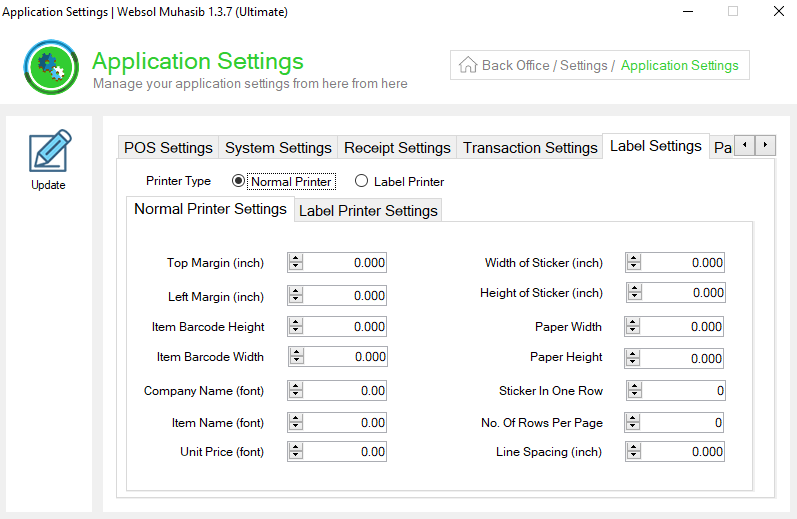
Normal Printer Settings
Step 8. On the "Normal Printer" Section, follow and set the details given below.
- In the "Top Margin (inch)" field, set the top margin.
- In the "Left Margin (inch)" field, set the left margin.
- In the "Item barcode Height" field, set the height of the item barcode.
- In the "Item barcode Width" field, set the width of the item barcode.
- In the "Company name (font)" field, set the font of the company name.
- In the "Item name (font)" field, set the font of the item name.
- In the "Unit Price (font)" field, set the font of the unit price.
- In the "Width of Sticker (inch)" field, set the width of the sticker.
- In the "Height of Sticker (inch)" field, set the height of the sticker.
- In the "Paper Width" field, set the width of the paper.
- In the "Paper Height" field, set the height of the paper.
- In the "Sticker in One Row" field, set the sticker in one row.
- In the "No. of Rows Per Page" field, set the number of rows per page.
- In the "Line spacing (inch)" field, set the line spacing.
Step 9. On the left of the window, click on Update Button (a message box appears "System Configuration has been Updated successfully").
Step 10. On the "Label Setting" section, choose "Label Printer" from the "Printer Type".
Step 11. On the tab bar of the "Label settings" Section, click on the "Label Printer Setting" section.
Step 12. The "Label Printer Setting" section is shown on the screen.
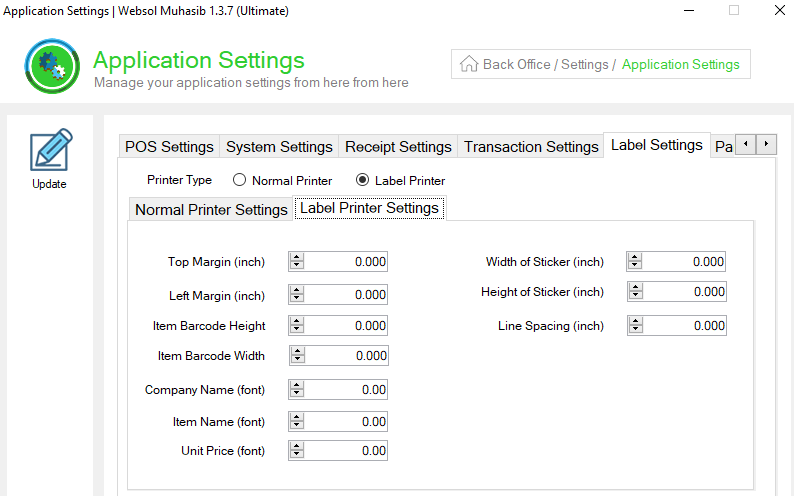
Label Printer Settings
Step 13. On the "Label Printer Settings" Section, follow and set the details given below.
- In the "Top Margin (inch)" field, set the top margin.
- In the "Left Margin (inch)" field, set the left margin.
- In the "Item barcode Height" field, set the height of the item barcode.
- In the "Item barcode Width" field, set the width of the item barcode.
- In the "Company name (font)" field, set the font of the company name.
- In the "Item name (font)" field, set the font of the item name.
- In the "Unit Price (font)" field, set the font of the unit price.
- In the "Width of Sticker (inch)" field, set the width of the sticker.
- In the "Height of Sticker (inch)" field, set the height of the sticker.
- In the "Line spacing (inch)" field, set the line spacing.
Step 14. On the left of the window, click on Update Button (a message box appears "System Configuration has been Updated successfully").
Step 15. Close the Window.
CALL US NOW!
+92 311 052 0111 | +92 21 3722 1800
PRODUCT DETAILS
https://www.pointofsale.pk/products/muhasib/
Popular Searches for Configure Label Settings in Websol Muhasib ERP
- Muhasib ERP with label setting in Pakistan.
- Muhasib ERP with normal printer settings.
- Muhasib ERP with label printer settings.
- ERP software global configurations
- ERP software receipt
- How to set the labels in Muhasib ERP?
- How to configure label settings in Muhasib ERP?
- How to configure printers in Muhasib ERP?
- How to set receipt in Muhasib ERP
- Business settings in Muhasib ERP.
- Business POs settings in Muhasib ERP.
- POS screen settings in business Muhasib ERP.
- ERP Software in Lahore, Karachi, Islamabad, Peshawar, Quetta, and all over Pakistan with Interactive Sale screens and customers.
- Websol Muhasib ERP is an All-in-One, One-window business management software solution in Karachi, Lahore, Islamabad, and all over Pakistan.
- Which is the best All-in-One, One-window business management software solution in Pakistan? Websol Muhasib ERP
- Muhasib ERP: Best all-in-one business software solution System.
- Muhasib ERP vs Business management solutions.
- Business ERP Karachi: Muhasib ERP.
- Business ERP Lahore: Muhasib ERP.
- Business ERP Islamabad: Muhasib ERP.
- Muhasib ERP with sales management systems.
- Muhasib ERP with integrated inventory management System.
- Muhasib ERP business running Software System.
- Muhasib ERP POS with purchase Management in business.
- Sales order ticket in Muhasib ERP.
- Business Management Software Pakistan
#websol #websoltechnologies #websolerp #muhasiberp #businesserp #businesssoftware #possoftware #cashregister #businessmanagement #erppos #crmsystem #possystem #billingapp #billingsoftware #fbrpos #srbpos #erpsolutions #accountingsoftware #accountingsolutions #erpsolutions #erpaccounting
