
Suppliers are a key part of your restaurant inventory and purchase management.
With Websol Bawarchi POS, you can easily create and manage supplier profiles, set payment terms, and link each supplier with your purchase entries. This ensures smooth stock handling and accurate SRB-compliant purchase documentation.
This guide will walk you step-by-step through adding a new supplier in Bawarchi POS.
Steps to Create a Supplier
Step 1: Log In
Log in to your Websol Bawarchi POS Back Office.
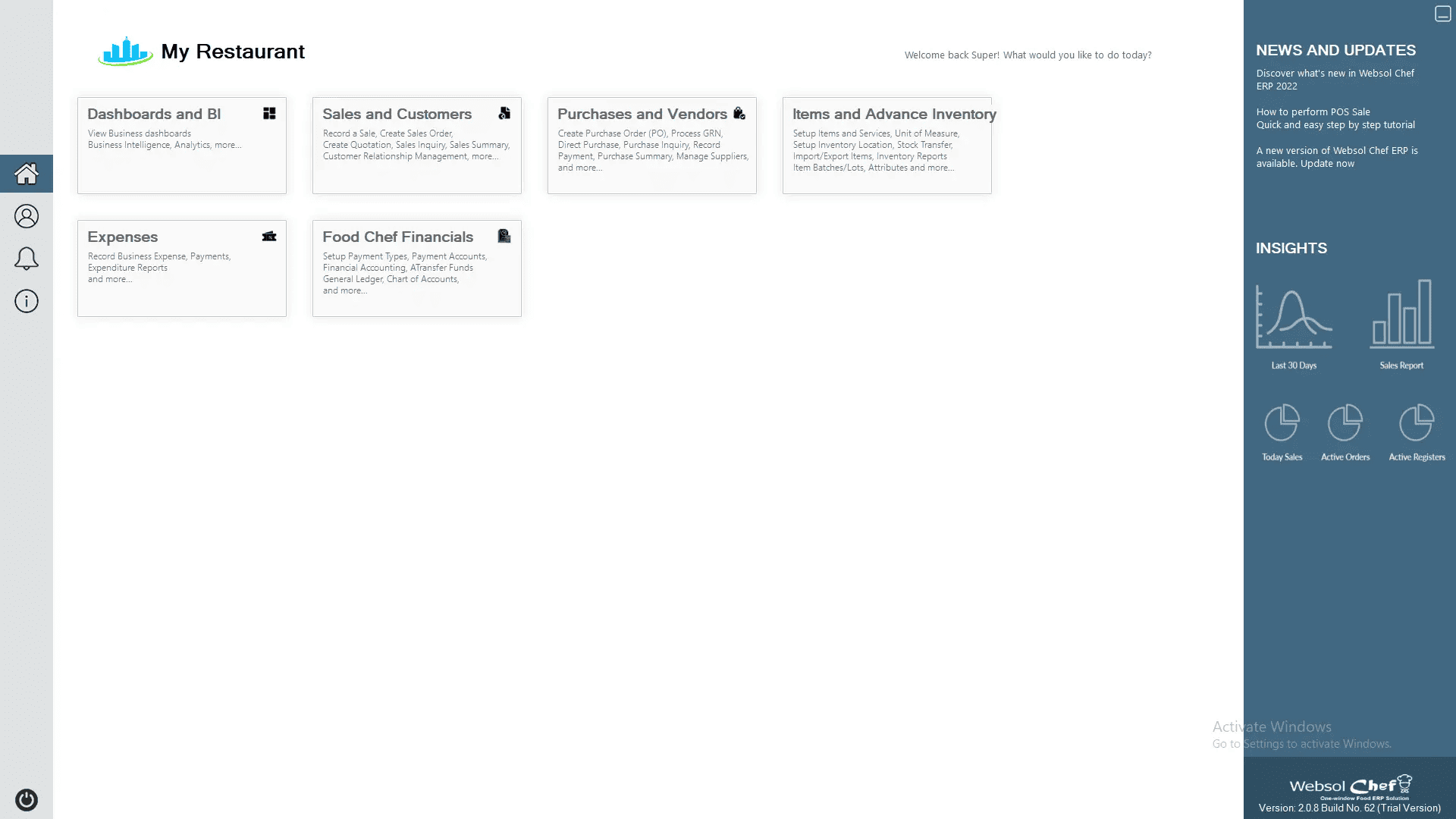
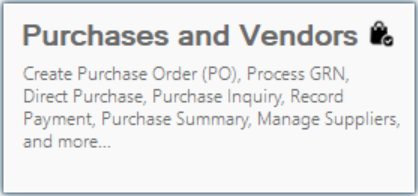
Step 2: Open Purchases & Vendors
On the main dashboard, click “Purchases and Vendors.”
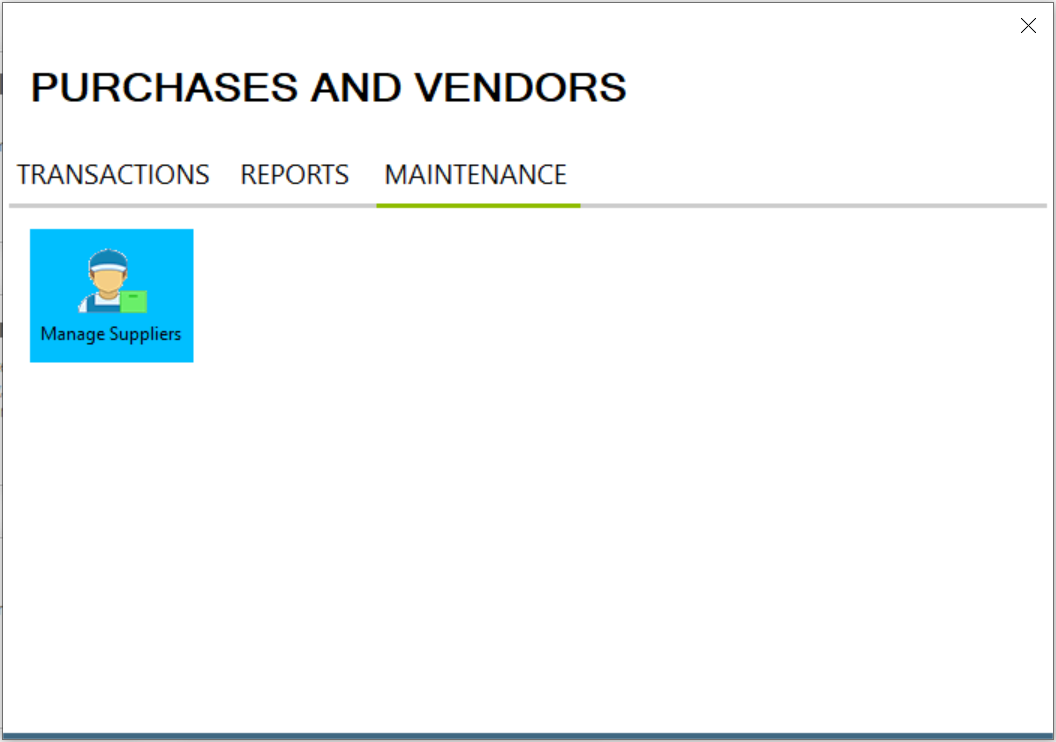
Step 3: Go to Maintenance
Inside the Purchases & Vendors window, click the “Maintenance” tab on the top.
Step 4: Open Supplier Management
From the left side menu, click “Manage Suppliers.”
The Manage Suppliers window will now appear.
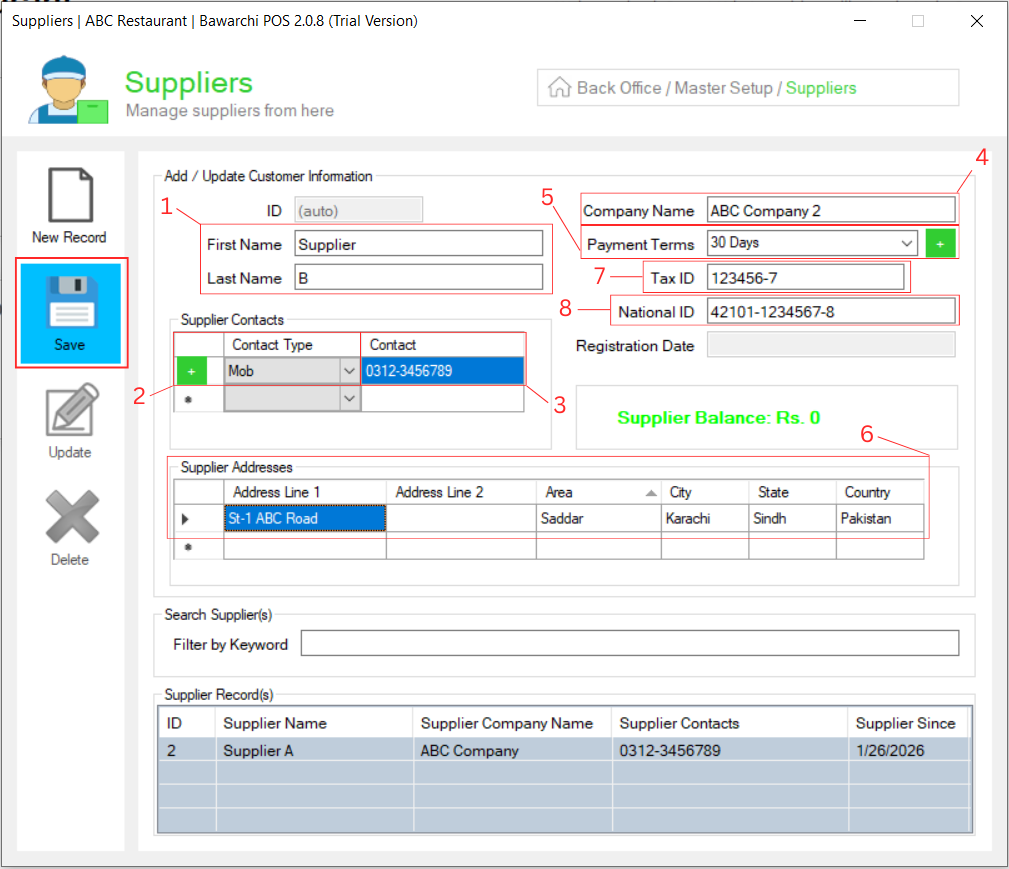
Step 5: Enter Supplier Details
Fill in the supplier information as shown below:
-
Name: Enter the supplier’s name (e.g., Supplier 1).
-
Contact Type: Select the type (Mobile, Telephone, Phone, etc.).
-
Contact Number: Enter the supplier’s phone number.
-
Company Name: Add the supplier’s company name (e.g., ABC Foods).
-
Payment Terms: Select how this supplier is usually paid:
-
Immediate Payment
-
30 Days
-
Monthly billing
-
-
Address: Enter the supplier’s address in the Supplier’s Address section. (optional)
-
Tax ID: Enter the supplier’s tax number. (optional)
-
National ID: Enter the supplier’s 13 digit national identity number. (optional)
Step 6: Save Supplier Profile
Click the Save button on the left side.
A confirmation message will appear:
“Record has been added successfully.”
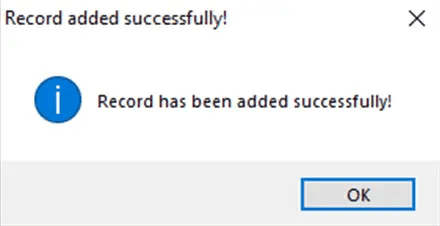
Your supplier is now added and ready to use in Purchase Entries.
Click Here To Watch Video Tutorial
Pro Tip:
If your business is using SRB Integration, always enter each supplier’s complete details (company name, contact number, address, and payment terms). This ensures smoother audits and accurate tax reporting.
Summary
Creating a supplier in Websol Bawarchi POS is simple and essential for managing purchases efficiently. By filling out basic supplier details and saving the record, you can easily link suppliers to purchase entries, track credit terms, and maintain clean, SRB-ready records.
Keywords
-
Bawarchi POS
-
Restaurant POS Pakistan
-
SRB Integration
-
Supplier Creation
-
Manage Suppliers
-
Purchase Management
-
Vendor Management
-
Websol POS Guide
-
Supplier Payment Terms
-
Restaurant Inventory System.
CALL US NOW!
+92 311 052 0111 | +92 21 3722 1800
PRODUCT DETAILS
https://www.pointofsale.pk/products/bawarchi/
#websol #websoltechnologies #websolpos #bawarchipos #restaurantpos #restaurantsoftware #possoftware #cashregister #kitchendisplaysystems #billingapp #billingsoftware #fbrpos #srbpos #accountingsoftware #accountingsolutions
