
Performing a Take Away Sale in Websol Bawarchi POS
In Websol Bawarchi you have a feature to perform takeaway sales and manage the records.
Performing Takeaway Sale
To perform takeaway sales in the software you have to follow the steps given below
Step 1. Log in to the system and access the Main Back Office user interface.
Step 2. On the appeared window, click "Sales and Customers".
step 3. On the appearing "Sales Management" window, the "Transactions" section is shown on your screen.
Step 4. On the "Transaction" section, click on "New POS Sale"
Step 5. The "New POS Sale" window appears on the screen.
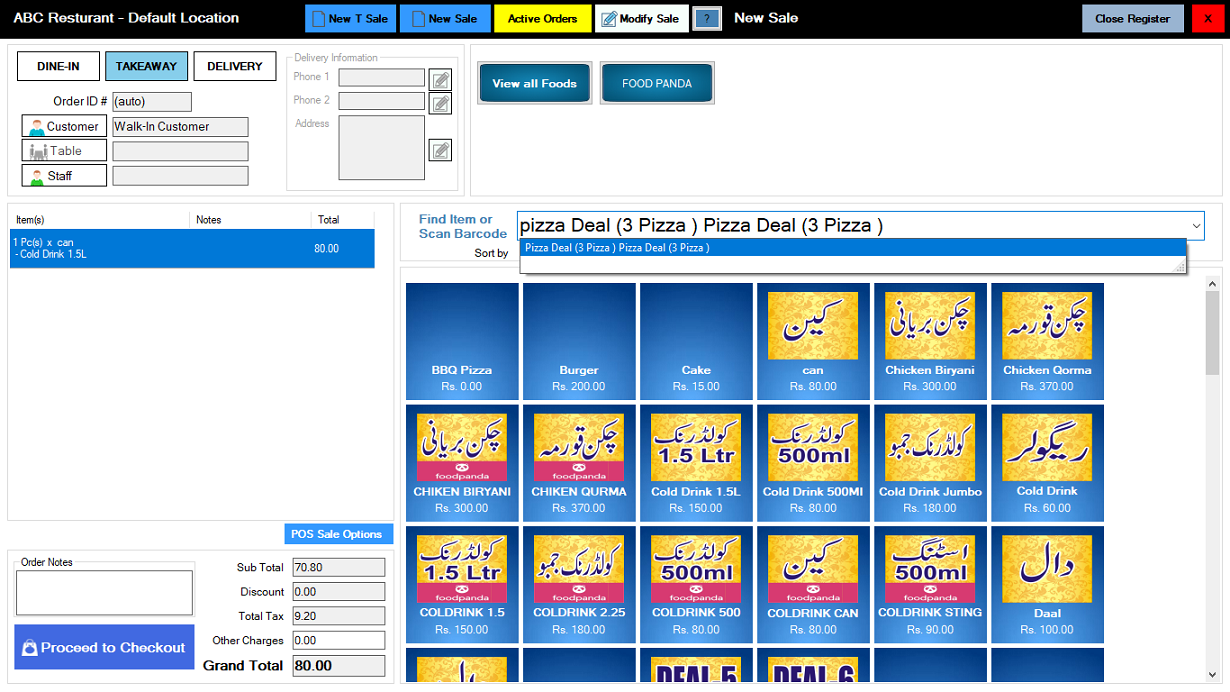
Step 6. First, select the "Dine-in" button on the top-right of the screen.
Step 7. On the top-right, select the customer from the "Customer" button.
Step 8. From the "Find Item or Scan Barcode" field, search your items and then select the ordered items.
Step 9. The ordered items are shown on the left table.
Step 10. Look on the below-left of the "POS Sale" screen, and click on "proceed to checkout".
Step 11. The "Pay Now" Pop-up appears on the screen.
Step 12. Enter the payment and select the payment type like (Cash), click on enter button.
Step 13. look at the below, and click on the Save + Receipt button (message box appears "Record has been Updated successfully").
