
Adding a New Item in Websol Bawarchi POS
Websol Bawarchi POS gives you a feature in which you can add your product easily to a software
Creating an Item
For creating items you have to follow the steps given below:
Step 1. Log in to the system and access the Main Back Office user interface.
Step 2. On the appeared window, click "Item and Advanced Inventory".
step 3. On the appearing "Item and Inventory Management" window, the "Transactions" section is shown on your screen.
Step 4. On the tab bar, click on "Maintenance".
Step 5. On the left of the "Maintenance" window, click on the "Manage Items"
Step 6. The "Items and Ingredients" window appears on the screen.
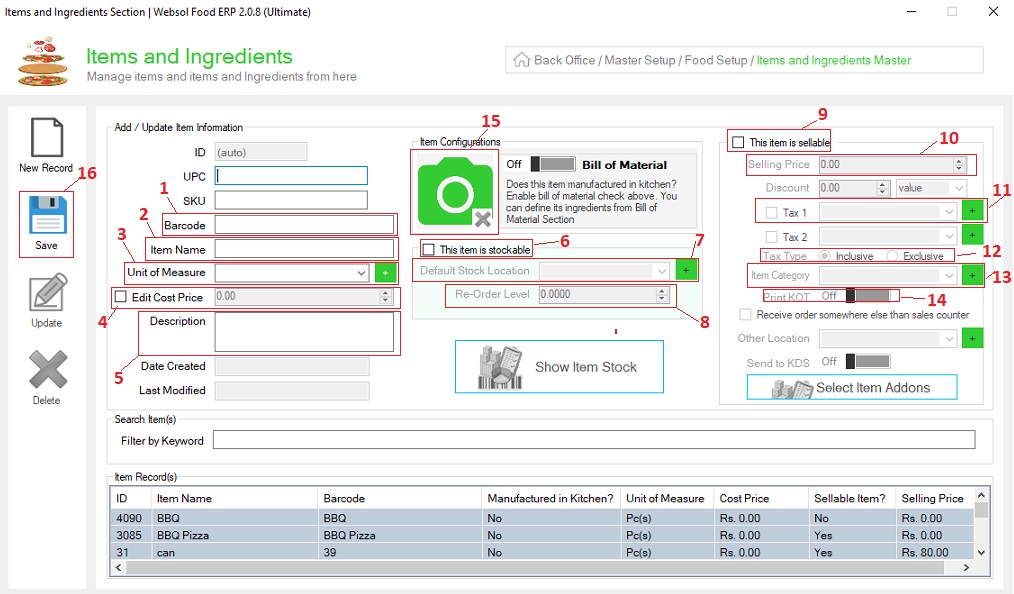
Step 7: On the "Items and Ingredients", give the following details of an item in the software.
- In the "Barcode" field, generate any barcode like "001".
- In the "Item Name" field, insert an item name like "coke 250ml".
- In the "Unit of Measurement" dropdown, select a unit of measurement like "Pcs".
- Check on the "Edit Cost Price" field, and insert the cost price.
- In the "Description" field, enter a note if you want its optional.
- Check on the "This item is Stockable" panel.
- In the "Default Stock location " field, enter the stock location.
- In the "Re-Order Level" field, set the quantity of the stock that Notify you the stock is low
- Check on the "This Item is Sellable" panel.
- In the "Selling price" field, insert the price
- Check on the "TAX" dropdown, and select the TAX.
- Chose the "TAX Type" from the selection.
- Select the "Item Category" from the selection.
- Enable/Disable the "Print KOT", enable it if you want to generate kitchen order taken otherwise disable it.
- On the "Item Configuration" panel, click on the "camera logo" if you want to add a picture of your item & Upload your picture of the item.
- On the left, click on the Save button (message box appears "Record has been Updated successfully").
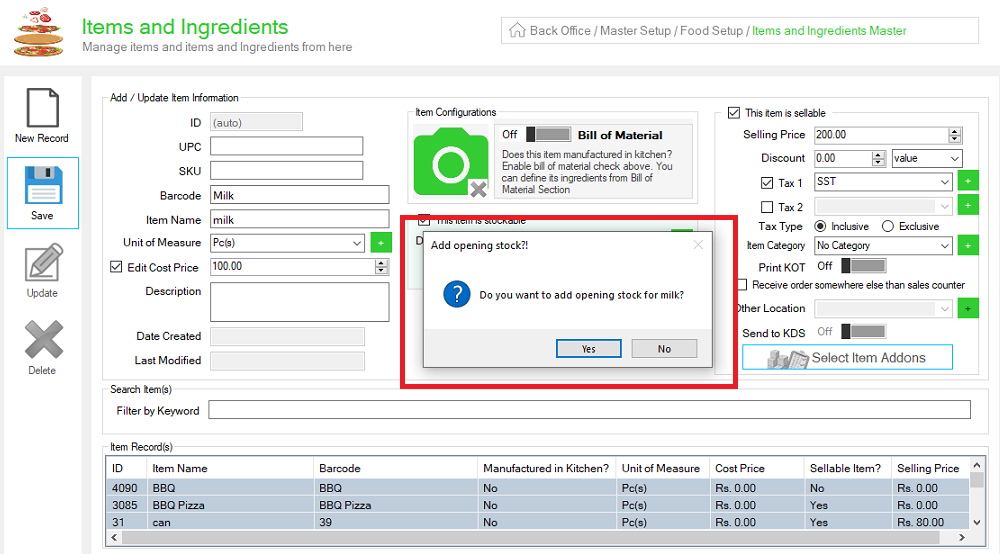
- After the Message box, another message box appears ("do you want to add opening stock for item")
- Click on yes
- The opening stock window appears
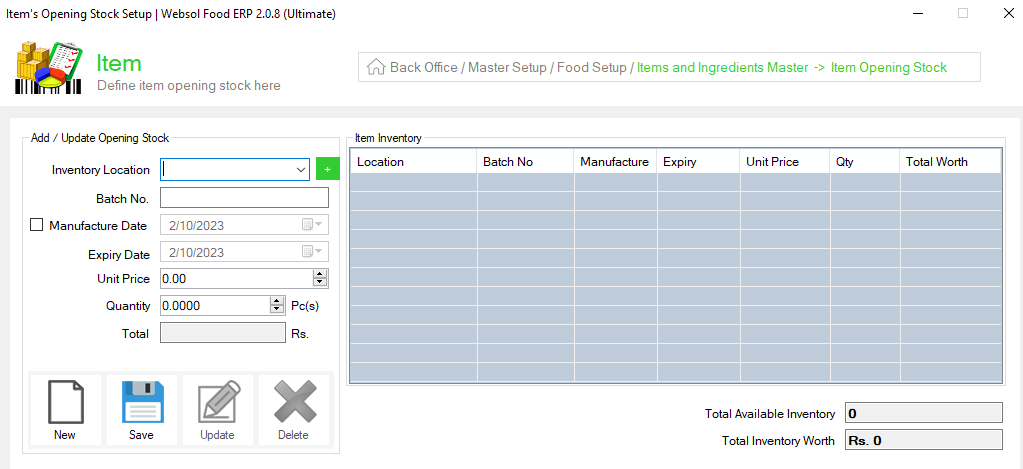
- You can manage your stock by entering the details
- Select your "Inventory Location"
- Enter "Batch No"
- Enter "Unit Price"
- Enter "Quantity"
- Look below, and click on the Save button (message box appears "Record has been Updated successfully").
- Item has been created successfully
CALL US NOW!
+92 311 052 0111 | +92 21 3722 1800
PRODUCT DETAILS
https://www.pointofsale.pk/products/bawarchi/
Popular Searches for Websol Bawarchi POS item Creation
- How to Create Item in Websol Bawarchi POS
- How to Add Opening Stock in Websol Bawarchi POS
- Assigning Location to Item in Websol Bawarchi POS
- POS Software in Lahore, Karachi, Islamabad, Peshawar, Quetta, and all over Pakistan with Interactive Dashboards and BI tools.
- Which is the best Restaurant Billing Software in Pakistan? Websol Bawarchi POS
- Bawarchi POS: Best Restaurant Billing System.
- Bawarchi POS vs Restaurant Billing Machine.
- Restaurant POS Karachi: Bawarchi POS.
- Restaurant POS Lahore: Bawarchi POS.
- Restaurant POS Islamabad: Bawarchi POS.
- Bawarchi POS with Food Ordering App.
- Bawarchi POS with integrated Food Ordering System.
- Bawarchi POS Food Management Software System.
- Bawarchi POS POS with Recipe Management.
- Kitchen Ordered Ticket (KOT) in Bawarchi POS.
- Restaurant Management Software Pakistan
#websol #websoltechnologies #websolpos #bawarchipos #restaurantpos #restaurantsoftware
#possoftware #cashregister #kitchendisplaysystems #billingapp #billingsoftware #fbrpos #srbpos #accountingsoftware #accountingsolutions
