
Websol Bawarchi POS enables restaurants to manage dine-in orders, allowing customers to enjoy their meals while the bill remains open until checkout. This feature is ideal for busy dining environments, multi-course meals, and table service operations.
In this guide, you’ll learn how to create a dine-in Pay-Later sale and how to complete the payment afterward.
Main Steps to Perform a Complete Dine-In Sale
Websol Bawarchi POS manages dine-in sales through three major stages:
-
Perform a Dine-In Sale
-
Modify the Sale (if required)
-
Complete the Payment
Each stage is explained in detail below.
1. Steps to Perform a Dine-In Sale
Step 1: Log In
-
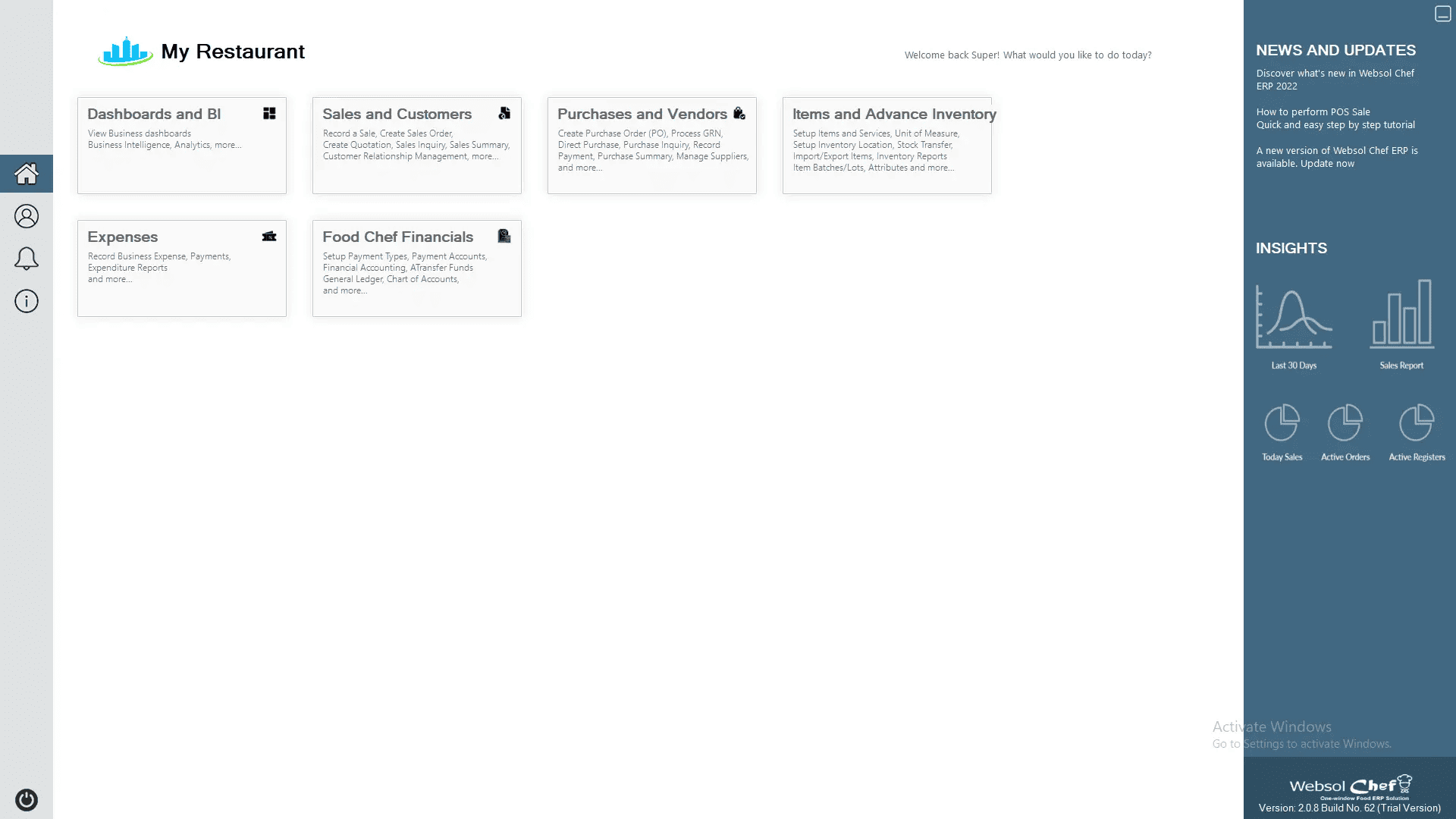
Log in to the system and open the Main Back Office Dashboard.
Step 2: Open Sales & Customers
-
Click on Sales and Customers.
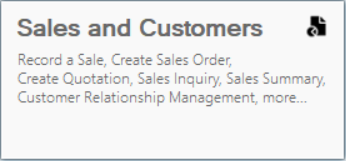
- The Sales Management window opens with the Transactions section.
Step 3: Open New POS Sale
-
Click New POS Sale.
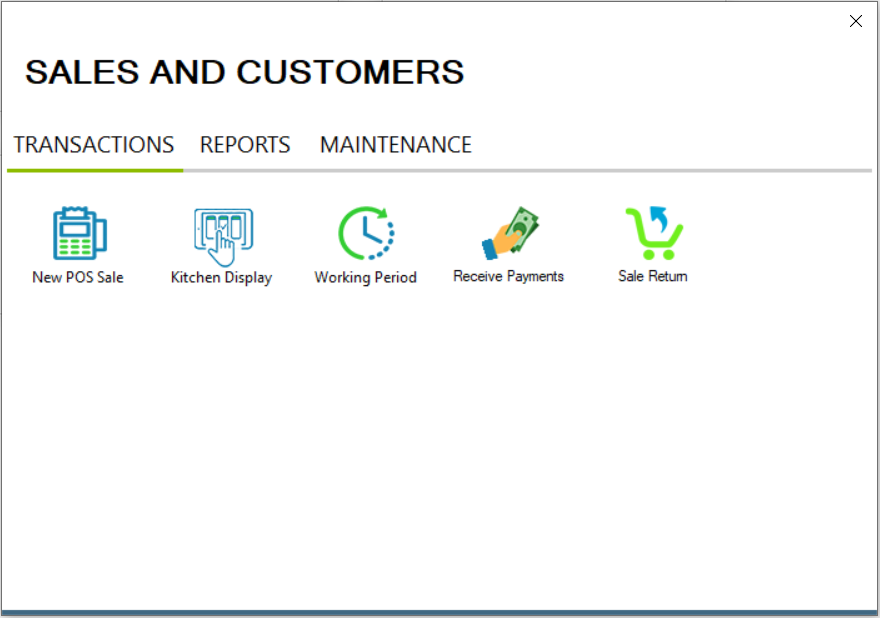
- The New POS Sale screen appears.
Step 4: Create a Dine-In Order
-
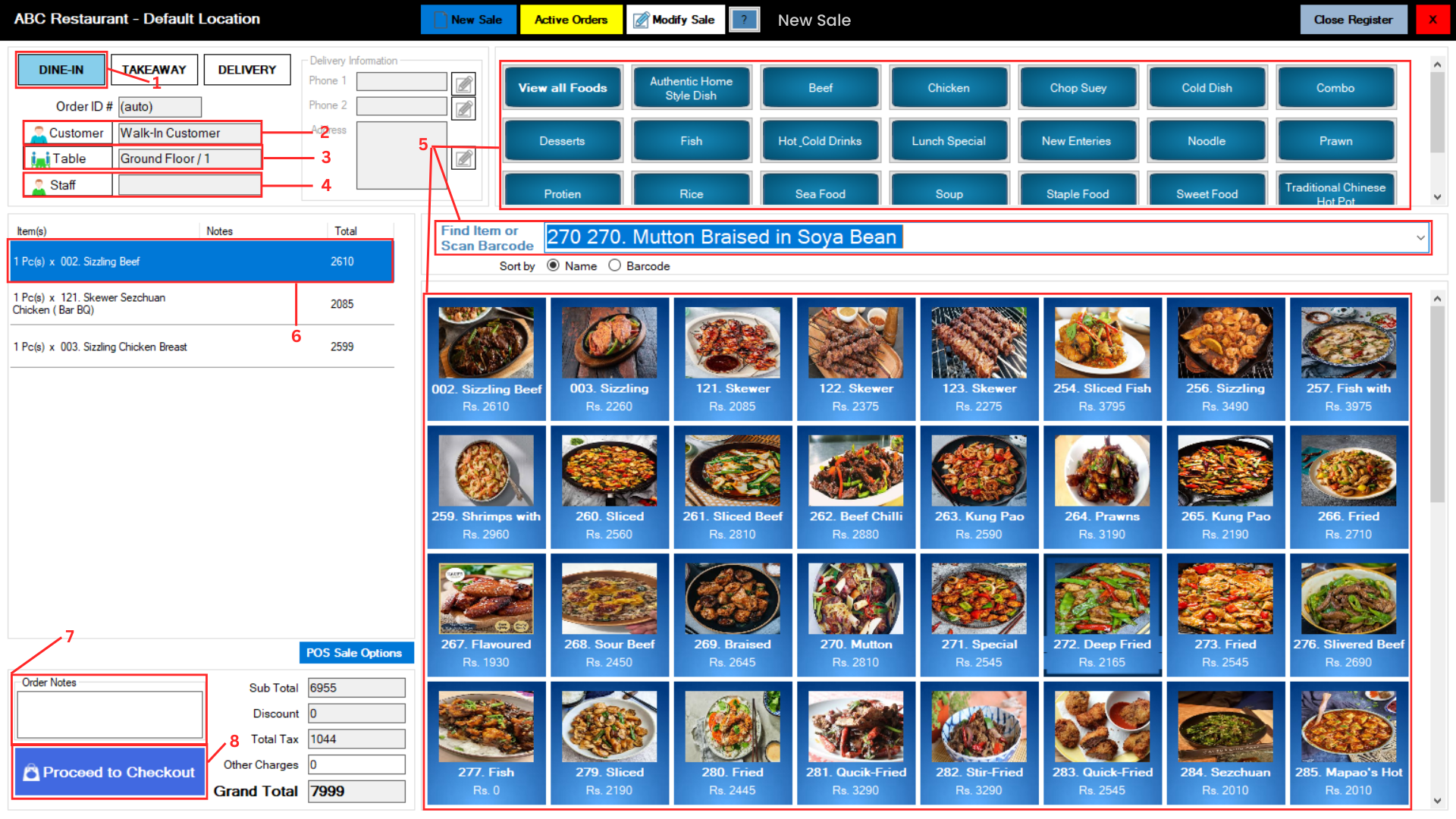
Select Sale Type: Click the Dine-In button at the top-right.
-
Select Customer: Click Customer and select the dine-in customer.
-
Select Table: Click Table and assign the table.
-
Select Staff (Optional): Click Staff to assign a waiter/server.
-
Select Items: Use Find Item / Scan Barcode to add ordered items. Selected items appear in the order list on the left.
-
Enter Quantity (Optional): Click on a particular item name to change its quantity.
- Order Notes (Optional): Write order notes (if any).
-
Proceed to Checkout: Click Proceed to Checkout at the bottom-left.
Step 5: Select Pay-Later
-
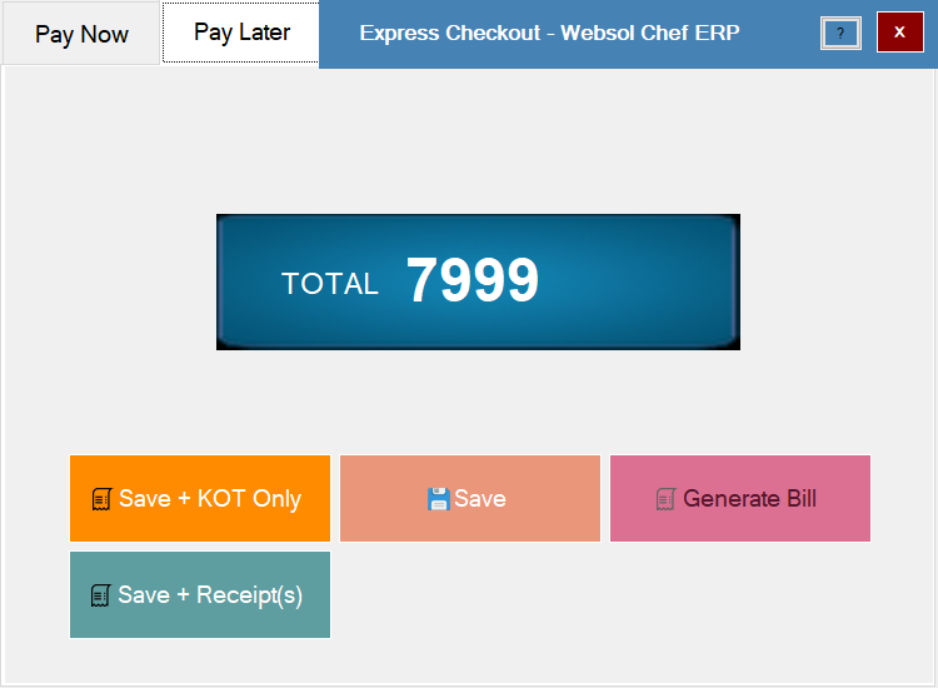
Pay Now popup window will appear, Then click on Pay Later.

Step 6: Save the Order
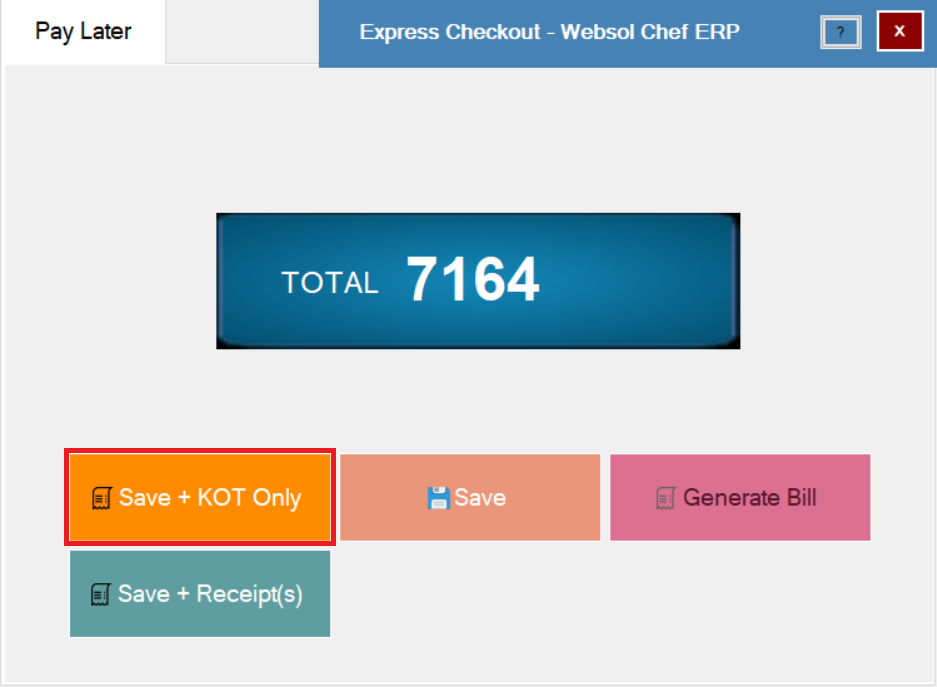
- Pay Later window will appear.
-
Click Save + KOT Only.
-
Confirm the message: “Record has been added successfully.”
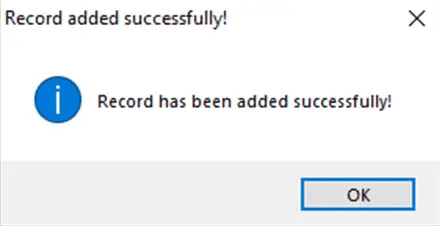
The dine-in order is now active, and the customer will pay later.
2. Modify a Dine-In Sale
If a customer adds items or requests changes, you can modify the existing dine-in order.
Step 7: Open Modify Sale
-
From the top of the POS Sale screen, click Modify Sale.

Step 8: View Active Orders
-
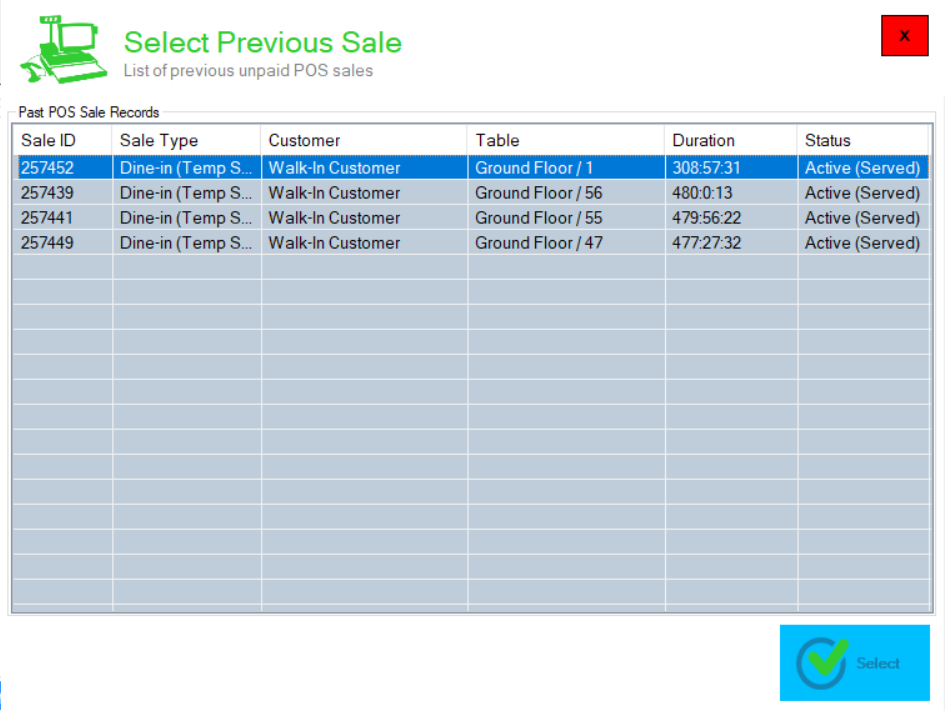
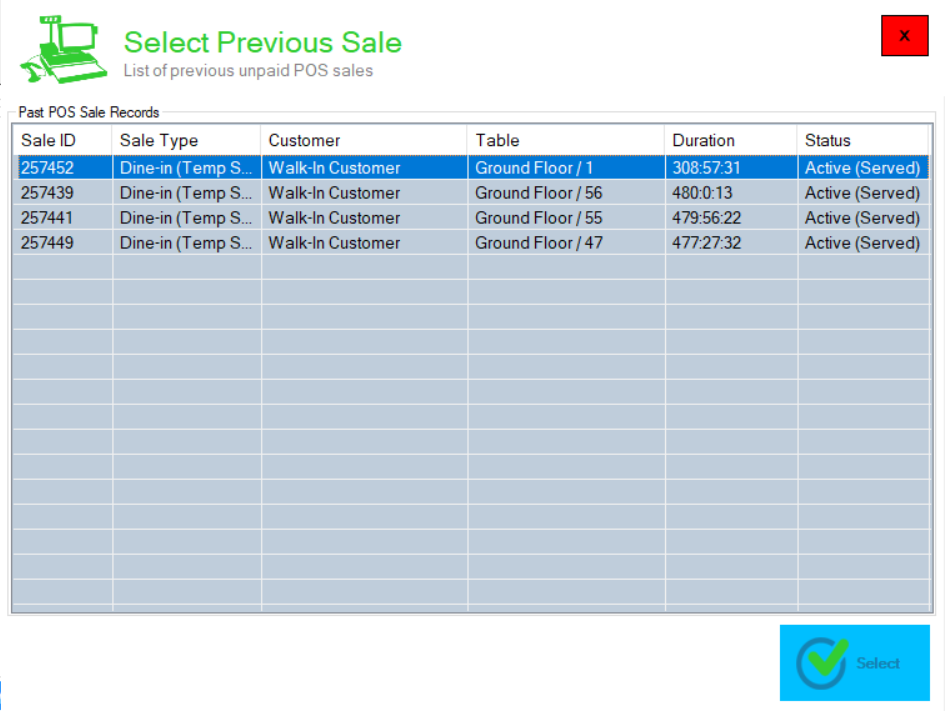
The Select Previous Sale screen appears, showing all active dine-in orders.
Step 9: Select the Order
-
Select the order based on the table number. Click Select at bottom-right.
-
The selected order appears on the left side of the POS Sale screen.
Step 10: Modify Order Items and Discounts
-
Add new items using Find Item / Scan Barcode or Item Menu.
-
To edit an item:
-
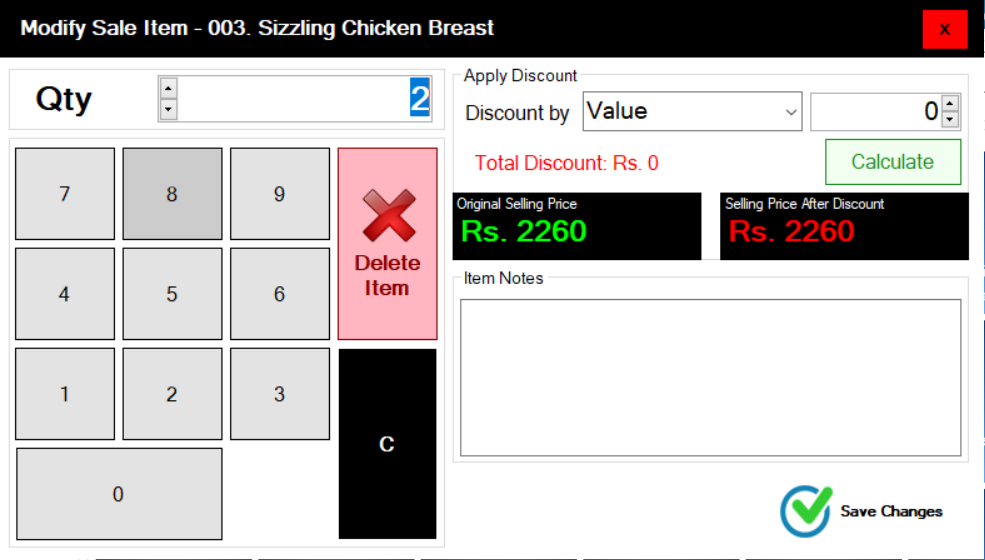
Click the item name.
-
The Modify Sale Item screen appears.
-
Update the quantity as required.
-
Apply discount on item by Value, Percentage or Price After Discount.
-
Enter item-specific notes (optional).
-
Click Save Changes to apply updates.
-
-
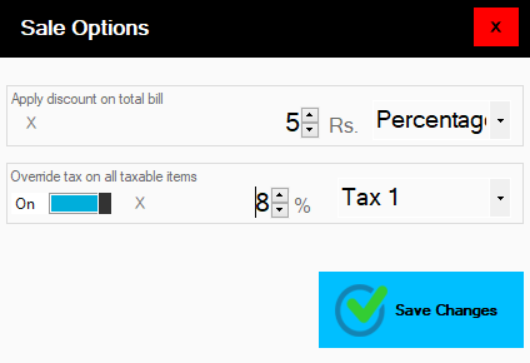
To apply a discount on the total bill:
-
Click on POS Sale Options.
-
Apply discount by value or percentage.
-
-
Tax Override (If Required):
-
Enable the Override Tax option. Enter the new tax percentage. Then select the tax to override. (e.g., If default tax is 15% for cash payments and the customer chooses card payment (8% tax), use the Tax Override feature to change tax from 15% to 8%.)
-
Note:
If your software is integrated with SRB, Use tax override feature to change tax rates according to the payment method.
Step 11: Save Modified Order
-
Click Proceed to Checkout.
-
In the Pay-Later popup, click Save + KOT Only.
Note:
New KOT only prints newly added items in the order list.
The sale remains active until final payment.
3. Steps to Complete Payment of a Dine-In Sale
Step 12: View Active Orders
-
Click on Active Orders. The Active Sales screen appears.

Step 13: Select the Order
- Select the order based on the table number. Click Select at bottom-right.
Step 14: Review Order
-
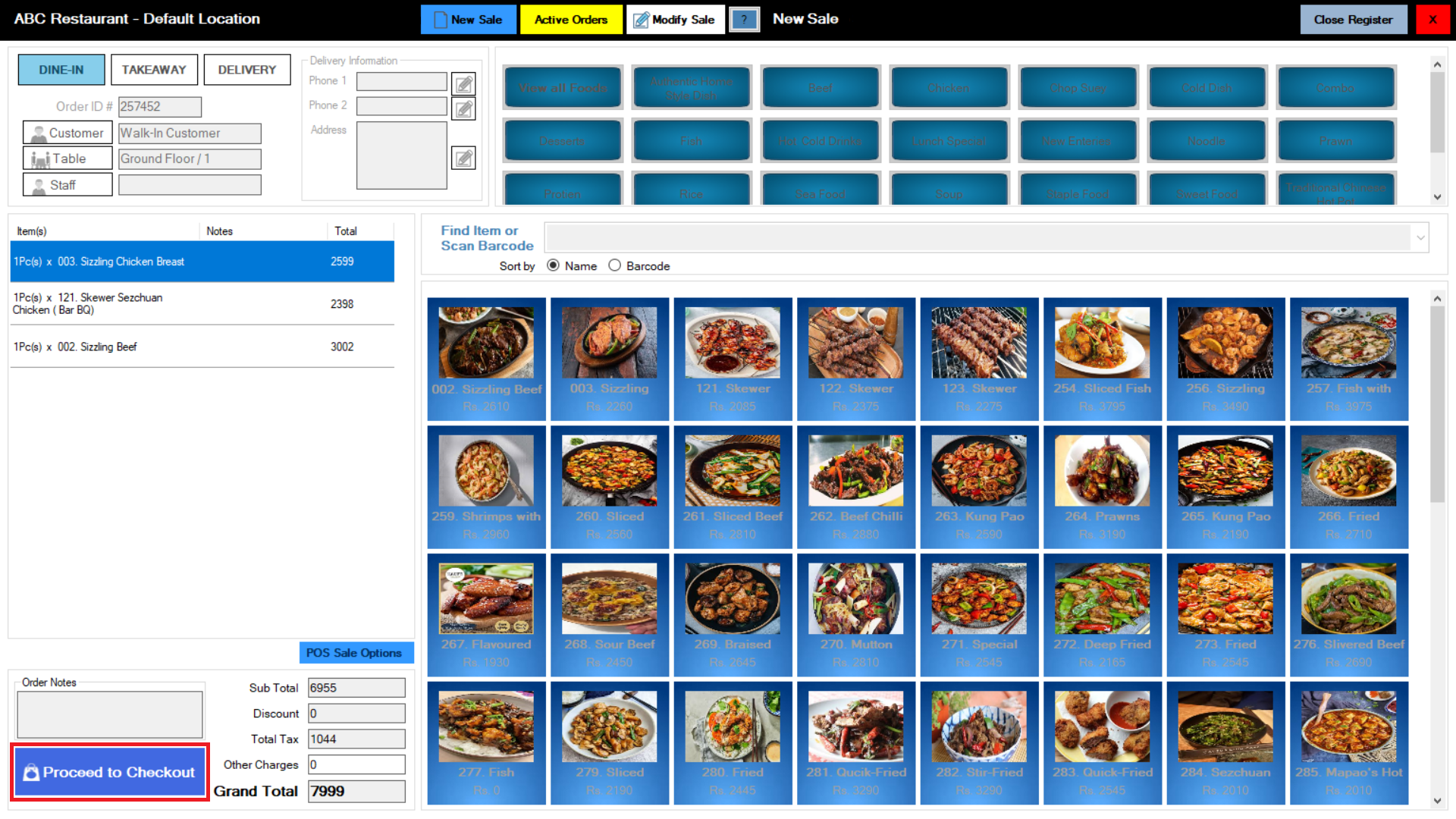
All ordered items appear again on the left side of the POS Sale screen.
Step 15: Proceed to Checkout
-
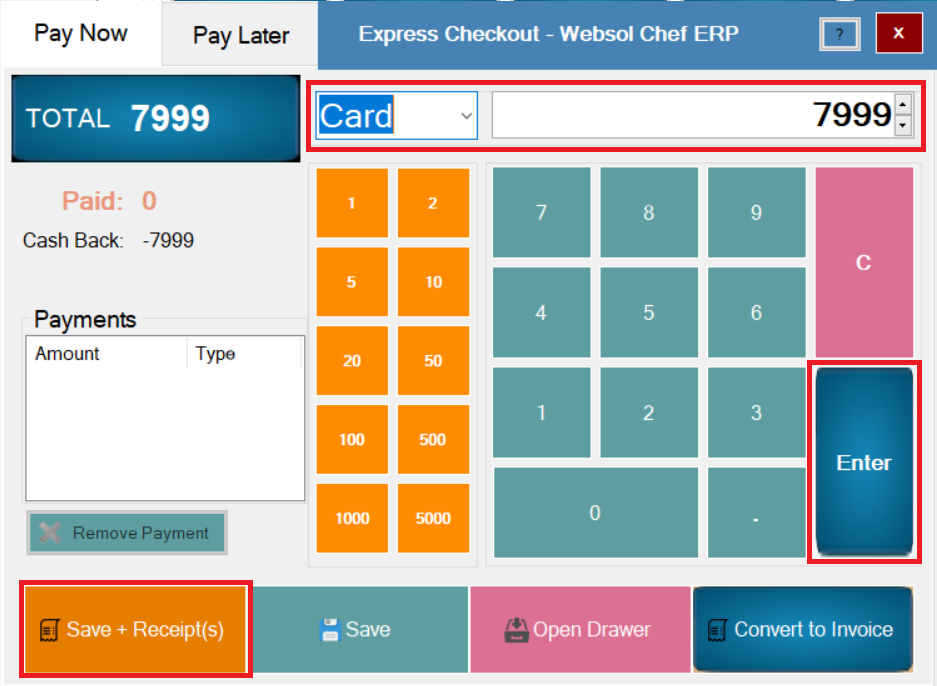
Click Proceed to Checkout. The Pay-Now popup appears.
Step 16: Enter Payment
-
Enter the payment amount. Select the payment method (Cash, Card, etc.).
-
Press Enter.
Step 17: Save the Transaction
-
Click Save.
-
Confirmation message appears: “Record has been updated successfully.”
The dine-in sale is now completed.
Click Here To Watch Video Tutorial
Pro Tip
During peak hours, always assign the correct table and waiter before adding items. This ensures accurate KOT printing, faster service, and easier tracking of active dine-in orders.
Summary
Websol Bawarchi POS allows restaurants to efficiently manage dine-in Pay-Later sales by keeping orders active until checkout. Staff can create orders, modify items, apply discounts or tax overrides, and finalize payments seamlessly—improving operational efficiency and customer satisfaction.
Keywords
-
Dine-In Sales
-
Pay-Later POS
-
Dine-In Pay-Later
-
Modify Sale in POS
-
Bawarchi POS Dine-In
-
Active Orders POS
-
Restaurant POS Pakistan
-
Websol POS Documentation
-
Delayed Payment Sales
-
Dine-In Billing System
-
KOT Only Orders
CALL US NOW!
+92 311 052 0111 | +92 21 3722 1800
PRODUCT DETAILS
https://www.pointofsale.pk/products/bawarchi/
#websol #websoltechnologies #websolpos #bawarchipos #restaurantpos #restaurantsoftware #possoftware #cashregister #kitchendisplaysystems #billingapp #billingsoftware #fbrpos #srbpos #accountingsoftware #accountingsolutions
