
Generate the Addons of an Item in Websol Bawarchi POS
Websol Bawarchi POS allows you to create and manage your Item Addon.
For creating item categories you have to follow the steps given below:
Step 1. Log in to the system and access the Main Back Office user interface.
Step 2. On the appeared window, click "Item and Advanced Inventory".
Step 3. On the appearing "Item and Inventory Management" window, the "Transactions" section is shown on your screen.
Step 4. On the tab bar, click on "Maintenance".
Step 5. On the right of the "Maintenance" window, click on the "Item Addon".
Step 6. The "Food Addons Master" window appears on the screen.
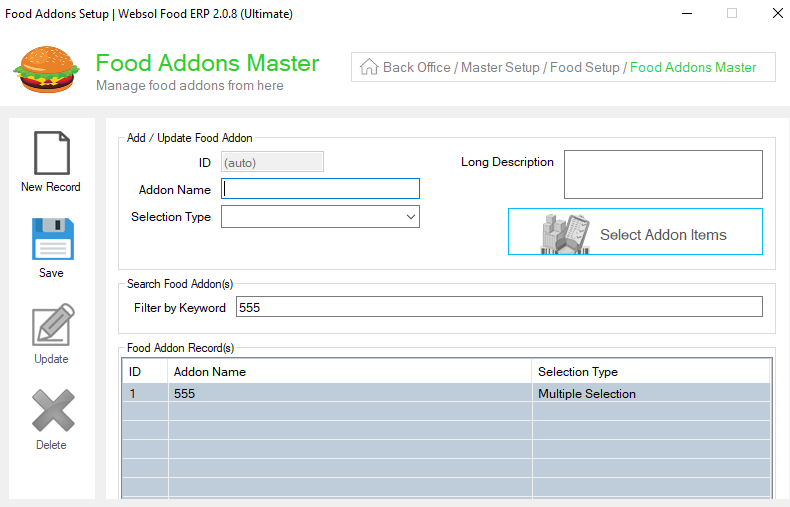
Step 7. On the "Add/Update Food Addon" panel, look at the "Addon Name" field.
Step 8. Enter the name in the "Addon Name" field like " flavors "
Step 9. From the "Selection type" dropdown, Select the selection type.
Step 10. On the left, click on the Save button (message box appears "Record has been Updated successfully").
Step 11. On the " Search Food Addon(s) " panel, Search your addon name from the search box.
Step 12. The Addon name is shown on the "Food Addon Record(s) " panel, click on the addon name from the table.
step 13. After clicking on an item, click on the "Select Addon Items" button.
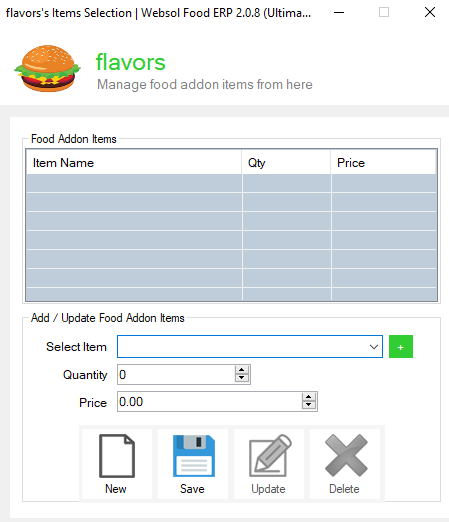
Step 14. On the "Select Addon Items" window, Give the Following information.
- Select the items from the dropdown
- Give the quantity
- Enter the price
- On the below, click on the Save button (message box appears "Record has been Updated successfully").
To assign the Item addon on the item
Step 15. Close the window, and go to the "Maintenance" Section".
Step 16. On the left of the "Maintenance" Section, click on the "Manage Items"
Step 17. Search the item in the " Search Item(s) " panel & Select the Item from the Table.
Step 18. On the below-right, click on the "Select Item Addons" button.
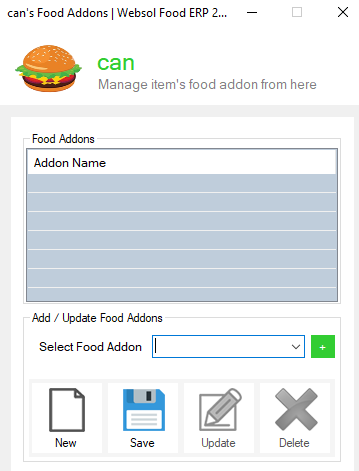
Step 19. From the "Select food Addon " dropdown, Select the Addons
Step 20. On the below, click on the Save button (message box appears "Record has been Updated successfully").
Close the Window.
CALL US NOW!
+92 311 052 0111 | +92 21 3722 1800
PRODUCT DETAILS
https://www.pointofsale.pk/products/bawarchi/
- How to Create item Addons in Bawarchi POS
- Item Addon management in Bawarachi POS
- How to Create Deals using Item Addons in Bawarchi POS
- Item Addons Creation in Food POS
- Deals in Bawarchi POS using Item Addons
- How to Create Deals in Food POS
- Deals Management in Bawarchi POS
- Best Deal Management Food POs
- Bundle Items in Bawarchi POS
- Inventory Management in FoodPOS
- Item Management in Bawarchi POS
- POS Software in Lahore, Karachi, Islamabad, Peshawar, Quetta and all over Pakistan with Interactive Dashboards and BI tools.
- Which is the best Restaurant Billing Software in Pakistan? Websol Bawarchi POS
- Bawarchi POS: Best Restaurant Billing System.
- Bawarchi POS vs Restaurant Billing Machine.
- Restaurant POS Karachi: Bawarchi POS.
- Restaurant POS Lahore: Bawarchi POS.
- Restaurant POS Islamabad: Bawarchi POS.
- Bawarchi POS with Food Ordering App.
- Bawarchi POS with integrated Food Ordering System.
- Bawarchi POS Food Management Software System.
- Bawarchi POS POS with Recipe Management.
- Kitchen Ordered Ticket (KOT) in Bawarchi POS.
- Restaurant Management Software Pakistan
#websol #websoltechnologies #websolpos #bawarchipos #restaurantpos #restaurantsoftware
#possoftware #cashregister #kitchendisplaysystems #billingapp #billingsoftware #fbrpos #srbpos #accountingsoftware #accountingsolutions
