
Managing supplier purchases is an important part of running any restaurant or café.
With Websol Bawarchi POS, you can easily record all your purchases, track supplier payments, apply discounts, and maintain accurate stock levels.
Whether your suppliers provide credit terms, cash invoices, or SRB-compliant purchases, this guide will help you create a clean and error-free Purchase Entry.
Steps to Create a New Purchase Entry
Step 1: Log In
Log in to your Bawarchi POS Back Office.
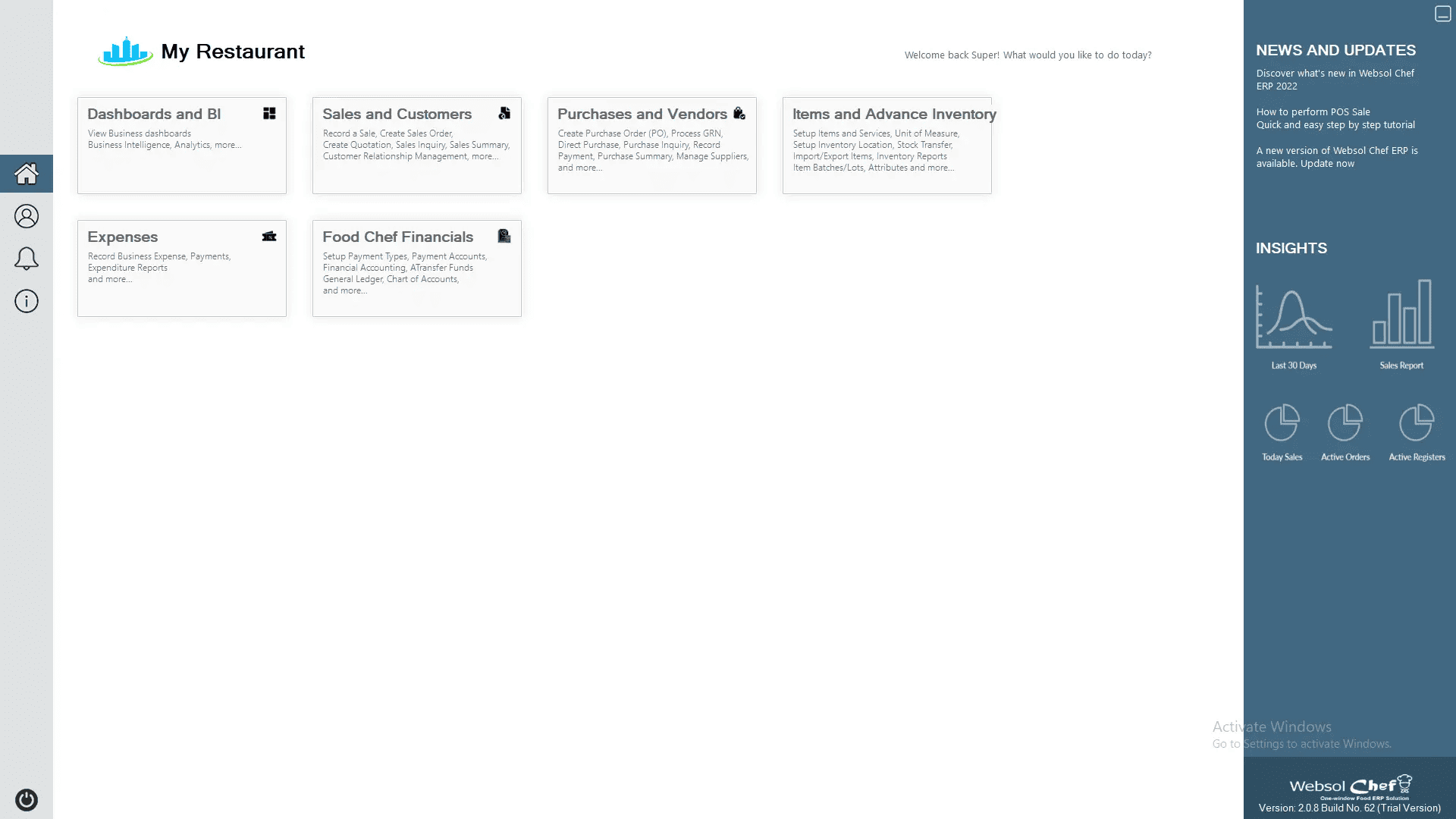
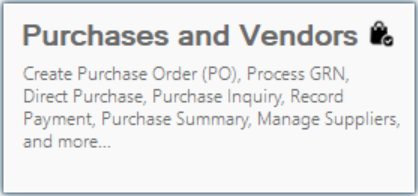
Step 2: Open Purchases & Vendors
On the main dashboard, click “Purchases and Vendors.”
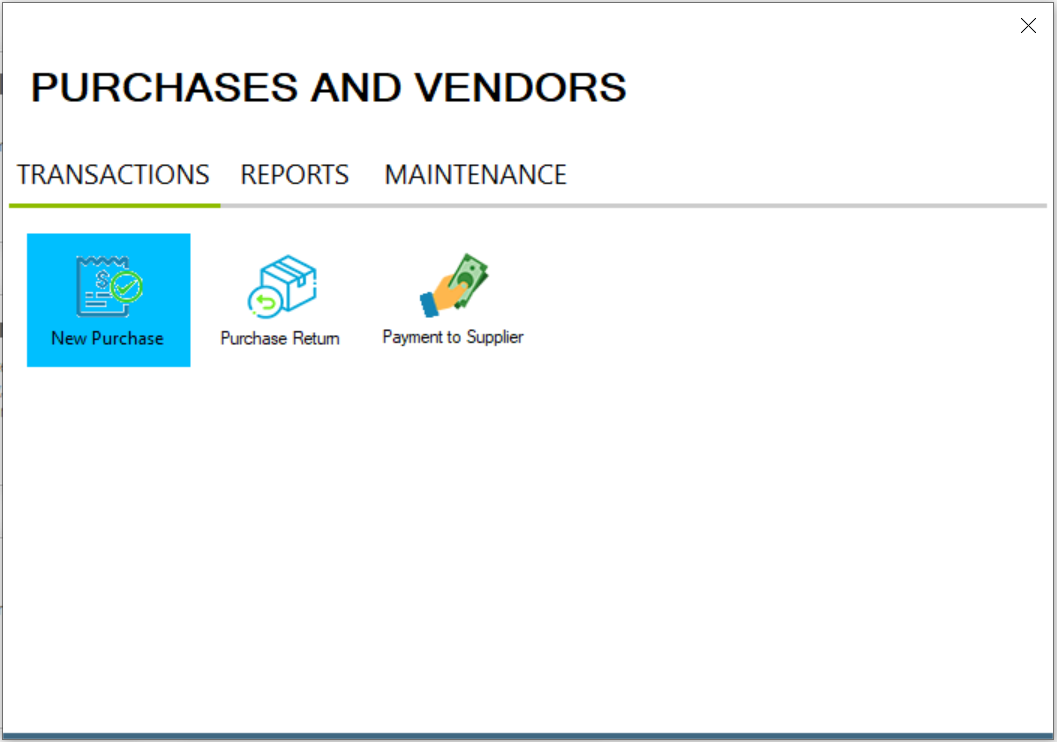
Step 3: Go to Transactions
A new window will appear showing all purchase-related options under Transactions.
Step 4: Create a New Purchase
Under the Transactions section, click “New Purchase.”
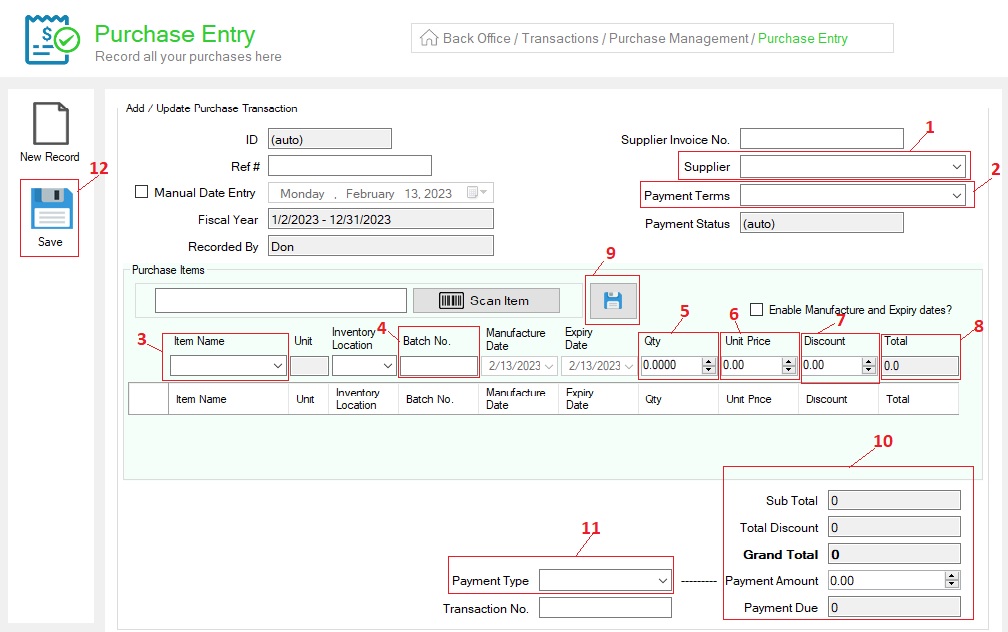
The Purchase Entry form will open.
Step 5: Fill Out Purchase Details
Enter the following information to record your purchase:
-
Supplier: Select a supplier from the dropdown list.
-
Payment Terms: Select when the payment is due for this supplier (e.g., immediate payment, 30 days, or month-end).
-
Item Name: Select or type the product you purchased.
-
Batch No: Enter the batch number (optional but useful for inventory tracking).
-
Quantity (Qty): Enter the number of units purchased.
-
Unit Price: Enter the cost price of each unit.
-
Discount: Add any discount offered by the supplier (optional).
-
Total Amount: This field is automatically calculated based on price, quantity, and discount.
-
Save Line Item: Click the Save icon to add the item to your purchase list.
-
Check Summary Fields: Subtotal, Total Discount, Payment Amount and Payment Due.
-
Payment Type: Select how you are paying (Cash, Bank, Credit, etc.).
-
Save Purchase Entry: Click the Save button on the left side.
A message will appear: “Record has been updated successfully.”
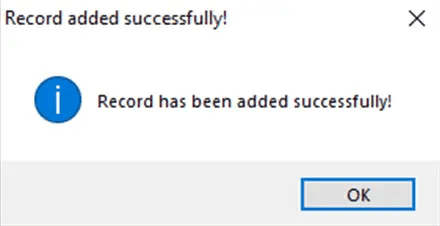
Close the window once saved.
Click Here To Watch Video Tutorial
Pro Tip:
For restaurants working with SRB Integration, always ensure:
-
Supplier data is updated
-
Purchase invoices match stock entries
-
Batch numbers and unit prices are entered accurately
This helps avoid compliance issues and keeps inventory perfectly aligned with tax reporting.
Summary
Creating a purchase entry in Websol Bawarchi POS is simple and efficient.
By selecting your supplier, entering product details, applying payment terms, and saving the record, you ensure accurate stock management and clean financial reporting—perfect for SRB-integrated restaurants in Pakistan.
Keywords
-
Bawarchi POS
-
Restaurant POS Pakistan
-
SRB Integration
-
Purchase Entry
-
Supplier Purchase
-
Add Purchase
-
POS Inventory Management
-
Websol POS Guide
-
Supplier Payment Terms
-
Restaurant Stock Management.
CALL US NOW!
+92 311 052 0111 | +92 21 3722 1800
PRODUCT DETAILS
https://www.pointofsale.pk/products/bawarchi/
#websol #websoltechnologies #websolpos #bawarchipos #restaurantpos #restaurantsoftware #possoftware #cashregister #kitchendisplaysystems #billingapp #billingsoftware #fbrpos #srbpos #accountingsoftware #accountingsolutions
